https://noways.tistory.com/2258
Unattend.xml Generator v2.0 - 탭 분류 및 기능 세분화
https://noways.tistory.com/2257 Unattend.xml Generator v1.0 - 무인설치 응답파일 생성기 초안📌 Unattend.xml Generator v1.0 기능 완벽 정리1. 프로그램 개요목적Windows 자동 설치(Unattend) 환경에서 자주 사용하는 커스
noways.tistory.com
🪟 Unattend.xml Generator v2.0
Windows 자동 설치 구성 도구 탭별 기능 안내
Windows 자동 응답 파일(Unattend.xml)을 직접 작성하는 것은 초보자에게 어려운 작업입니다.
이 프로그램은 AutoIt 기반 GUI로 제작되어, 복잡한 XML 편집 없이도 탭별 설정만 선택하면 자동으로 Unattend.xml 파일이 완성되도록 설계되었습니다.
아래는 각 탭별 주요 기능과 실제로 적용되는 설정 내용을 정리한 것입니다.
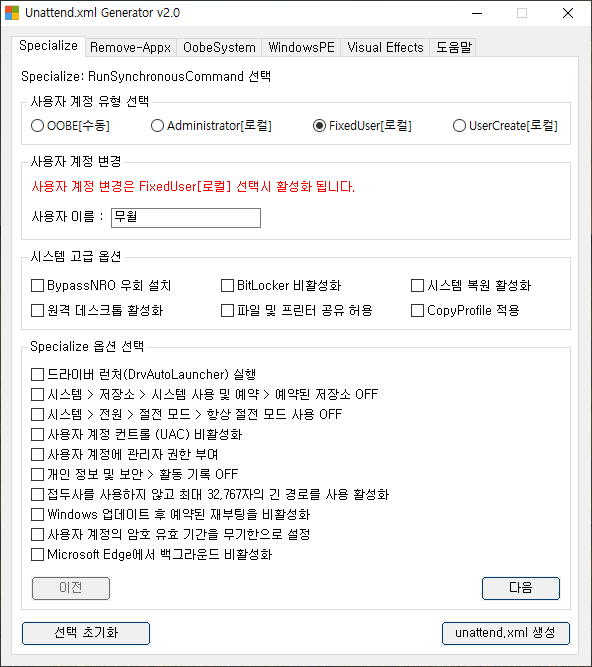
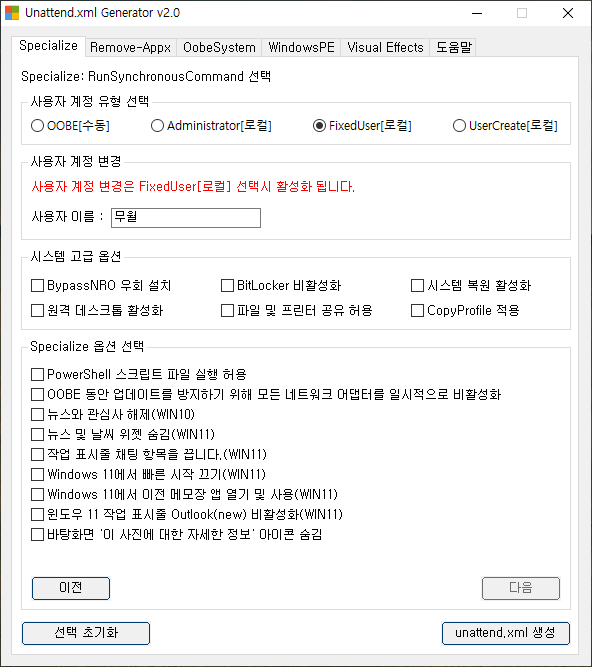
⚙️ Specialize 탭 – 시스템 초기화 및 구성 설정
Windows 설치 중 “Specialize” 단계에서 적용되는 설정을 지정하는 탭입니다.
이 단계는 설치가 완료되고 첫 부팅 전 시스템 환경을 구성하는 과정입니다.
주요 기능
- 시스템 고급 옵션
필수 설정을 빠르게 지정할 수 있는 구간으로, 다음과 같은 항목들이 포함됩니다.- ✅ BypassNRO 우회 설치 – 네트워크 연결 없이 로컬 계정으로 설치 가능하도록 설정
- ✅ BitLocker 비활성화 – BitLocker 드라이브 암호화를 기본적으로 꺼서 설치 지연 방지
- ✅ 시스템 복원 활성화 – 복원 지점을 자동 생성하여 안정성 확보
- ✅ 원격 데스크톱 활성화 / 파일 및 프린터 공유 허용 – 네트워크 관리 편의성 향상
- ✅ CopyProfile 적용 – 관리자 계정의 사용자 프로필을 기본 사용자에게 복사
기술 설명
이 탭의 설정은 Unattend.xml의 <settings pass="specialize"> 섹션에 삽입됩니다.
각 항목은 내부적으로 RunSynchronousCommand 명령으로 변환되어 Windows Setup 중 자동 실행됩니다.
예를 들어, BitLocker를 끄는 명령은 다음과 같이 변환됩니다:
	<settings pass="specialize">
	<component name="Microsoft-Windows-Deployment" processorArchitecture="amd64" publicKeyToken="31bf3856ad364e35" language="neutral" versionScope="nonSxS" xmlns:wcm="http://schemas.microsoft.com/WMIConfig/2002/State" xmlns:xsi="http://www.w3.org/2001/XMLSchema-instance">
	<RunSynchronous>
		<RunSynchronousCommand wcm:action="add">
			<Order>1</Order>
			<Path>cmd /c reg add HKLM\Software\Microsoft\Windows\CurrentVersion\ReserveManager /v ShippedWithReserves /t reg_dword /d 0 /f</Path>
			<Description>시스템 > 저장소 > 시스템 사용 및 예약 > 예약된 저장소 OFF</Description>
		</RunSynchronousCommand>
		<RunSynchronousCommand wcm:action="add">
			<Order>2</Order>
			<Path>cmd /c powercfg -h off</Path>
			<Description>시스템 > 전원 > 절전 모드 > 항상 절전 모드 사용 OFF</Description>
		</RunSynchronousCommand>
		<RunSynchronousCommand wcm:action="add">
			<Order>3</Order>
			<Path>cmd /c reg add HKLM\SOFTWARE\Microsoft\Windows\CurrentVersion\Policies\System /v EnableLUA /t REG_DWORD /d 0 /f</Path>
			<Description>사용자 계정 컨트롤 (UAC) 비활성화</Description>
		</RunSynchronousCommand>
		<RunSynchronousCommand wcm:action="add">
			<Order>4</Order>
			<Path>cmd /c reg add "HKLM\SOFTWARE\Policies\Microsoft\Windows\System" /v "PublishUserActivities" /t REG_DWORD /d 0 /f</Path>
			<Description>개인 정보 및 보안 > 활동 기록 OFF</Description>
		</RunSynchronousCommand>
		<RunSynchronousCommand wcm:action="add">
			<Order>5</Order>
			<Path>cmd /c reg add "HKLM\SYSTEM\CurrentControlSet\Control\BitLocker" /v "PreventDeviceEncryption" /t REG_DWORD /d 1 /f</Path>
			<Description>BitLocker 자동 암호화 비활성화</Description>
		</RunSynchronousCommand>
		<RunSynchronousCommand wcm:action="add">
			<Order>6</Order>
			<Path>cmd /c reg add "HKLM\SOFTWARE\Microsoft\Windows\CurrentVersion\OOBE" /v BypassNRO /t REG_DWORD /d 1 /f</Path>
			<Description>윈도우11 네트워크 인터넷 연결 없이 설치하기, OOBE 우회 설치</Description>
		</RunSynchronousCommand>
		<RunSynchronousCommand wcm:action="add">
			<Order>7</Order>
			<Path>netsh.exe advfirewall firewall set rule group="@FirewallAPI.dll,-28752" new enable=Yes</Path>
			<Description>원격 데스크톱 활성화</Description>
		</RunSynchronousCommand>
		<RunSynchronousCommand wcm:action="add">
			<Order>8</Order>
			<Path>netsh.exe advfirewall firewall set rule group="@FirewallAPI.dll,-28502" new enable=Yes</Path>
			<Description>파일 및 프린터 공유 방화벽 활성화</Description>
		</RunSynchronousCommand>
	</RunSynchronous>
	</component>
	<component name="Microsoft-Windows-SystemRestore-Main" processorArchitecture="amd64" publicKeyToken="31bf3856ad364e35" language="neutral" versionScope="nonSxS" xmlns:wcm="http://schemas.microsoft.com/WMIConfig/2002/State" xmlns:xsi="http://www.w3.org/2001/XMLSchema-instance">
		<!-- 시스템 복원을 활성화하거나 활성화합니다. 활성화=0, 비활성화=1 -->
		<DisableSR>0</DisableSR>
	</component>
	<component name="Microsoft-Windows-TerminalServices-LocalSessionManager" processorArchitecture="amd64" publicKeyToken="31bf3856ad364e35" language="neutral" versionScope="nonSxS" xmlns:wcm="http://schemas.microsoft.com/WMIConfig/2002/State" xmlns:xsi="http://www.w3.org/2001/XMLSchema-instance">
		<!-- 원격 데스크톱 연결을 사용할 수 있는지 여부를 지정합니다. 활성화=false, 비활성화=true -->
		<fDenyTSConnections>false</fDenyTSConnections>
	</component>
	</settings>
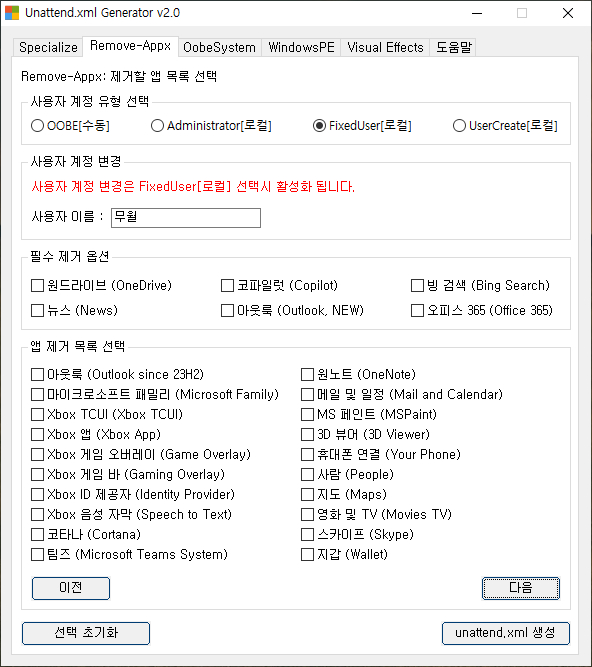
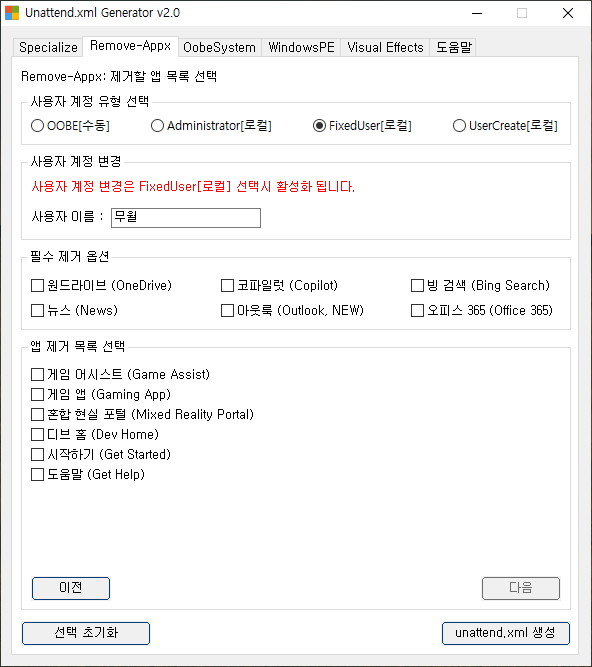
🧹 Remove-Appx 탭 – 기본 앱 제거
이 탭은 Windows 설치 후 자동으로 실행되는 Appx 패키지 제거 명령을 지정합니다.
즉, 불필요한 기본 앱을 초기부터 설치되지 않도록 하는 기능입니다.
주요 기능
- 필수 제거 옵션
- 🗑 OneDrive 제거
- 🗑 Xbox, 뉴스, 날씨, 피플 등 기본 앱 제거
- 🗑 Microsoft Store 관련 서비스 제한 (필요 시)
- 사용자가 직접 제거할 앱을 선택할 수도 있으며,
각 항목은 체크박스 형태로 제공되어 클릭 한 번으로 활성화할 수 있습니다.
기술 설명
선택된 앱 이름은 내부적으로 PowerShell 명령
Get-AppxPackage -AllUsers | Remove-AppxPackage
형태로 변환되어 XML의 <RunSynchronousCommand>에 삽입됩니다.
Windows 설치 완료 후 첫 부팅 시 자동 실행되어 시스템을 정리합니다.
<settings pass="windowsPE">
</settings>
<settings pass="specialize">
<component name="Microsoft-Windows-Deployment" processorArchitecture="amd64" publicKeyToken="31bf3856ad364e35" language="neutral" versionScope="nonSxS" xmlns:wcm="http://schemas.microsoft.com/WMIConfig/2002/State" xmlns:xsi="http://www.w3.org/2001/XMLSchema-instance">
<RunSynchronous>
<RunSynchronousCommand wcm:action="add">
<Order>1</Order>
<Path>cmd.exe /c ">>%TEMP%\remove-packages.txt echo Microsoft.OutlookForWindows"</Path>
<Description>코파일럿 (Copilot)</Description>
</RunSynchronousCommand>
<RunSynchronousCommand wcm:action="add">
<Order>2</Order>
<Path>cmd.exe /c ">>%TEMP%\remove-packages.txt echo Microsoft.BingSearch"</Path>
<Description>빙 검색 (Bing Search)</Description>
</RunSynchronousCommand>
<RunSynchronousCommand wcm:action="add">
<Order>3</Order>
<Path>cmd.exe /c ">>%TEMP%\remove-packages.txt echo Microsoft.BingNews"</Path>
<Description>뉴스 (News)</Description>
</RunSynchronousCommand>
<RunSynchronousCommand wcm:action="add">
<Order>4</Order>
<Path>cmd.exe /c ">>%TEMP%\remove-packages.txt echo Microsoft.Windows.Ai.Copilot.Provider"</Path>
<Description>아웃룩 (Outlook, NEW)</Description>
</RunSynchronousCommand>
<RunSynchronousCommand wcm:action="add">
<Order>5</Order>
<Path>cmd.exe /c ">>%TEMP%\remove-packages.txt echo Microsoft.MicrosoftOfficeHub"</Path>
<Description>오피스 365 (Office 365)</Description>
</RunSynchronousCommand>
<RunSynchronousCommand wcm:action="add">
<Order>6</Order>
<Path>powershell.exe -WindowStyle Hidden -NoProfile -Command "Get-AppxProvisionedPackage -Online | where DisplayName -In (Get-Content $env:TEMP\remove-packages.txt ) | Remove-AppxProvisionedPackage -AllUsers -Online *>&1 >> $env:TEMP\remove-packages.log;"</Path>
</RunSynchronousCommand>
<RunSynchronousCommand wcm:action="add">
<Order>7</Order>
<Path>cmd.exe /c del "C:\Users\Default\AppData\Roaming\Microsoft\Windows\Start Menu\Programs\OneDrive.lnk"</Path>
<Description>OneDrive 시작 메뉴 바로가기 삭제</Description>
</RunSynchronousCommand>
<RunSynchronousCommand wcm:action="add">
<Order>8</Order>
<Path>cmd.exe /c del "C:\Windows\System32\OneDriveSetup.exe"</Path>
<Description>OneDrive 설치 프로그램 삭제 (System32)</Description>
</RunSynchronousCommand>
<RunSynchronousCommand wcm:action="add">
<Order>9</Order>
<Path>cmd.exe /c del "C:\Windows\SysWOW64\OneDriveSetup.exe"</Path>
<Description>OneDrive 설치 프로그램 삭제 (SysWOW64)</Description>
</RunSynchronousCommand>
<RunSynchronousCommand wcm:action="add">
<Order>10</Order>
<Path>reg.exe load "HKU\mount" "C:\Users\Default\NTUSER.DAT"</Path>
<Description>NTUSER.DAT 하이브 로드</Description>
</RunSynchronousCommand>
<RunSynchronousCommand wcm:action="add">
<Order>11</Order>
<Path>reg.exe delete "HKU\mount\Software\Microsoft\Windows\CurrentVersion\Run" /v OneDriveSetup /f</Path>
<Description>NTUSER.DAT - OneDriveSetup 실행 등록값 삭제</Description>
</RunSynchronousCommand>
<RunSynchronousCommand wcm:action="add">
<Order>12</Order>
<Path>reg.exe unload "HKU\mount"</Path>
<Description>NTUSER.DAT 하이브 언로드</Description>
</RunSynchronousCommand>
</RunSynchronous>
</component>
</settings>👤 OobeSystem 탭 – 사용자 환경 및 바탕화면 구성
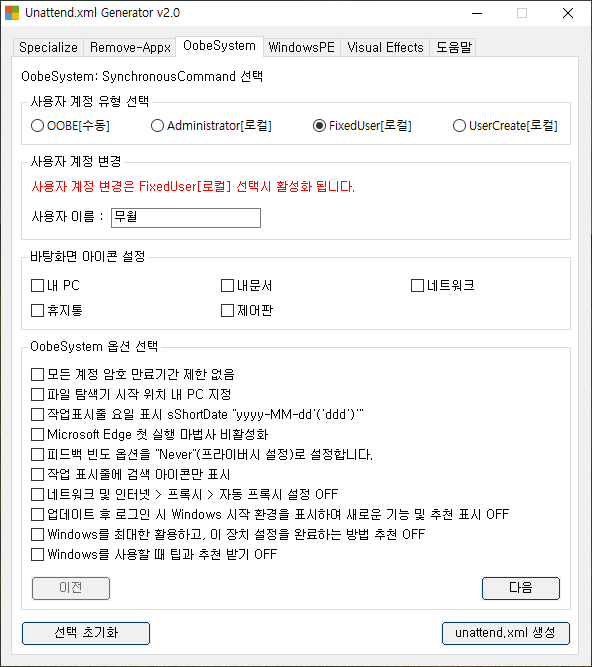
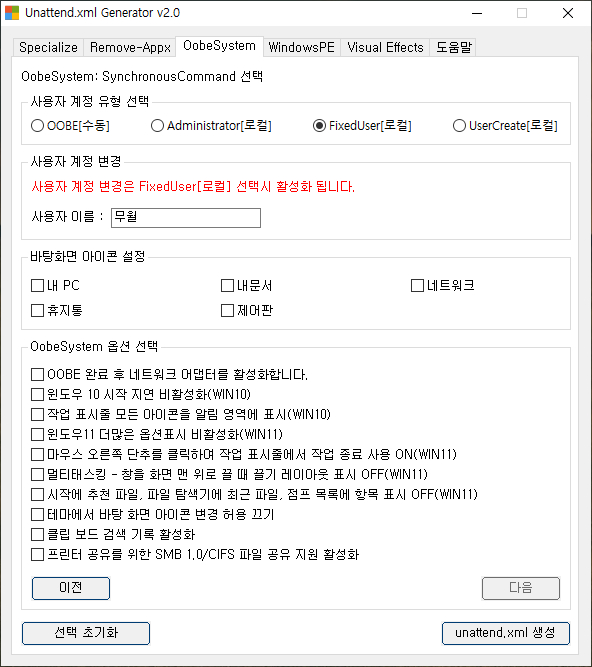
OOBE(Out-of-Box Experience) 단계에서 실행되는 명령을 제어하는 탭입니다.
Windows가 처음 실행될 때 사용자 계정이 생성되고 초기 환경이 세팅되는 시점입니다.
주요 기능
- 바탕화면 아이콘 표시 설정
- 🖥 “내 PC”, 📂 “내 문서”, 🌐 “네트워크”, 🗑 “휴지통”, ⚙️ “제어판” 표시 여부 지정
- 사용자 계정 구성
- FixedUser(로컬 계정) 선택 시 추가 사용자 계정 설정 가능
- 바로가기 및 초기 스크립트
- FirstLogon.ps1 실행, 시스템 속성 창 바로가기 등 자동 생성 가능
기술 설명
이 탭의 설정은 <settings pass="oobeSystem"> 섹션에 기록됩니다.
체크된 바탕화면 아이콘은 $aDesktopChk 배열로 관리되며,
스크립트 내부 함수가 PowerShell COM(WScript.Shell)을 통해 .lnk 바로가기를 생성합니다.
	<settings pass="oobeSystem">
    <component name="Microsoft-Windows-Shell-Setup" processorArchitecture="amd64" publicKeyToken="31bf3856ad364e35" language="neutral" versionScope="nonSxS" xmlns:wcm="http://schemas.microsoft.com/WMIConfig/2002/State" xmlns:xsi="http://www.w3.org/2001/XMLSchema-instance">
	<!-- OOBE 무인 설정(자동화) -->
	<OOBE>
		<!-- Windows 시작의 Microsoft 소프트웨어 사용 조건 페이지를 숨길지 여부를 지정합니다. true=숨김 -->
		<HideEULAPage>true</HideEULAPage>
		<!-- OOBE 중에 OEM 등록 페이지가 표시되는지 여부를 지정합니다. true=숨김 -->
		<HideOEMRegistrationScreen>true</HideOEMRegistrationScreen>
		<!-- 사용자가 OOBE 중에 로그인해야 하는지 여부를 지정합니다. true=숨김 -->
		<HideOnlineAccountScreens>true</HideOnlineAccountScreens>
		<!-- Windows 시작 중에 나타나는 무선 네트워크 연결 화면을 숨길지 여부를 지정합니다. true=숨김 -->
		<HideWirelessSetupInOOBE>true</HideWirelessSetupInOOBE>
		<!-- 사용자가 처음 로그온할 때 컴퓨터가 네트워크에 연결된 경우 네트워크의 위치를 지정합니다. -->
		<NetworkLocation>Work</NetworkLocation>
		<!-- 보안 업데이트와 사용자 계정 컨트롤을 모두 활성화. -->
		<ProtectYourPC>3</ProtectYourPC>
		<SkipMachineOOBE>true</SkipMachineOOBE>
		<SkipUserOOBE>true</SkipUserOOBE>
	</OOBE>
	<!-- 사용자(User) 계정 생성 / 비번 없음 -->
	<UserAccounts>
		<LocalAccounts>
			<LocalAccount wcm:action="add">
				<Password>
					<Value></Value>
					<PlainText>true</PlainText>
				</Password>
				<Description>Default Account</Description>
				<DisplayName>무월</DisplayName>
				<Group>Administrators</Group>
				<Name>무월</Name>
			</LocalAccount>
		</LocalAccounts>
	</UserAccounts>
	<!-- 사용자(User) 계정으로 자동 로그인 -->
	<AutoLogon>
		<Enabled>true</Enabled>
		<LogonCount>1</LogonCount>
		<Username>무월</Username>
	</AutoLogon>
	<!-- 사용자가 컴퓨터에 처음으로 로그온할 때 실행할 명령을 지정합니다. -->
	<FirstLogonCommands>
		<SynchronousCommand wcm:action="add">
			<Order>1</Order>
			<CommandLine>cmd /c wmic UserAccount set PasswordExpires=False</CommandLine>
			<Description>모든 계정 암호 만료기간 제한 없음</Description>
		</SynchronousCommand>
		<SynchronousCommand wcm:action="add">
			<Order>2</Order>
			<CommandLine>cmd /c reg add "HKEY_CURRENT_USER\Control Panel\International" /v sShortDate /t REG_SZ /d "yyyy-MM-dd'('ddd')'" /f</CommandLine>
			<Description>작업표시줄 요일 표시 sShortDate "yyyy-MM-dd'('ddd')'"</Description>
		</SynchronousCommand>
		<SynchronousCommand wcm:action="add">
			<Order>3</Order>
			<CommandLine>cmd /c reg add "HKCU\Software\Microsoft\Siuf\Rules" /v NumberOfSIUFInPeriod /t REG_DWORD /d 0 /f</CommandLine>
			<Description>피드백 빈도 옵션을 "Never"(프라이버시 설정)로 설정합니다.</Description>
		</SynchronousCommand>
		<SynchronousCommand wcm:action="add">
			<Order>4</Order>
			<CommandLine>cmd /c reg add "HKCU\Software\Microsoft\Windows\CurrentVersion\Internet Settings" /v "AutoDetect" /t REG_DWORD /d 0 /f</CommandLine>
			<Description>네트워크 및 인터넷 > 프록시 > 자동 프록시 설정 OFF</Description>
		</SynchronousCommand>
		<SynchronousCommand wcm:action="add">
			<Order>5</Order>
			<CommandLine>powershell.exe -WindowStyle Normal -NoProfile -Command "Get-Content -LiteralPath 'C:\Windows\Setup\Scripts\FirstLogon.ps1' -Raw | Invoke-Expression;"</CommandLine>
			<Description>FirstLogon.ps1</Description>
		</SynchronousCommand>
	</FirstLogonCommands>
	</component>
<Extensions xmlns="https://schneegans.de/windows/unattend-generator/">
<ExtractScript>
param(
[xml] $Document
);
foreach( $file in $Document.unattend.Extensions.File ) {
$path = [System.Environment]::ExpandEnvironmentVariables( $file.GetAttribute( 'path' ) );
mkdir -Path( $path | Split-Path -Parent ) -ErrorAction 'SilentlyContinue';
$encoding = switch( [System.IO.Path]::GetExtension( $path ) ) {
{ $_ -in '.ps1', '.xml' } { [System.Text.Encoding]::UTF8; }
{ $_ -in '.reg', '.vbs', '.js' } { [System.Text.UnicodeEncoding]::new( $false, $true ); }
default { [System.Text.Encoding]::Default; }
};
$bytes = $encoding.GetPreamble() + $encoding.GetBytes( $file.InnerText.Trim() );
[System.IO.File]::WriteAllBytes( $path, $bytes );
}
</ExtractScript>
<File path="C:\Windows\Setup\Scripts\UserOnce.ps1">
$scripts = @(
{
New-Item -Path 'Registry::HKEY_CURRENT_USER\Software\Microsoft\Windows\CurrentVersion\Explorer\HideDesktopIcons\ClassicStartMenu' -Force;
Set-ItemProperty -Path 'Registry::HKEY_CURRENT_USER\Software\Microsoft\Windows\CurrentVersion\Explorer\HideDesktopIcons\ClassicStartMenu' -Name '{20d04fe0-3aea-1069-a2d8-08002b30309d}' -Value 0 -Type 'DWord';
Set-ItemProperty -Path 'Registry::HKEY_CURRENT_USER\Software\Microsoft\Windows\CurrentVersion\Explorer\HideDesktopIcons\ClassicStartMenu' -Name '{59031a47-3f72-44a7-89c5-5595fe6b30ee}' -Value 0 -Type 'DWord';
Set-ItemProperty -Path 'Registry::HKEY_CURRENT_USER\Software\Microsoft\Windows\CurrentVersion\Explorer\HideDesktopIcons\ClassicStartMenu' -Name '{f02c1a0d-be21-4350-88b0-7367fc96ef3c}' -Value 0 -Type 'DWord';
Set-ItemProperty -Path 'Registry::HKEY_CURRENT_USER\Software\Microsoft\Windows\CurrentVersion\Explorer\HideDesktopIcons\ClassicStartMenu' -Name '{645ff040-5081-101b-9f08-00aa002f954e}' -Value 0 -Type 'DWord';
Set-ItemProperty -Path 'Registry::HKEY_CURRENT_USER\Software\Microsoft\Windows\CurrentVersion\Explorer\HideDesktopIcons\ClassicStartMenu' -Name '{5399e694-6ce5-4d6c-8fce-1d8870fdcba0}' -Value 1 -Type 'DWord';
New-Item -Path 'Registry::HKEY_CURRENT_USER\Software\Microsoft\Windows\CurrentVersion\Explorer\HideDesktopIcons\NewStartPanel' -Force;
Set-ItemProperty -Path 'Registry::HKEY_CURRENT_USER\Software\Microsoft\Windows\CurrentVersion\Explorer\HideDesktopIcons\NewStartPanel' -Name '{20d04fe0-3aea-1069-a2d8-08002b30309d}' -Value 0 -Type 'DWord';
Set-ItemProperty -Path 'Registry::HKEY_CURRENT_USER\Software\Microsoft\Windows\CurrentVersion\Explorer\HideDesktopIcons\NewStartPanel' -Name '{59031a47-3f72-44a7-89c5-5595fe6b30ee}' -Value 0 -Type 'DWord';
Set-ItemProperty -Path 'Registry::HKEY_CURRENT_USER\Software\Microsoft\Windows\CurrentVersion\Explorer\HideDesktopIcons\NewStartPanel' -Name '{f02c1a0d-be21-4350-88b0-7367fc96ef3c}' -Value 0 -Type 'DWord';
Set-ItemProperty -Path 'Registry::HKEY_CURRENT_USER\Software\Microsoft\Windows\CurrentVersion\Explorer\HideDesktopIcons\NewStartPanel' -Name '{645ff040-5081-101b-9f08-00aa002f954e}' -Value 0 -Type 'DWord';
Set-ItemProperty -Path 'Registry::HKEY_CURRENT_USER\Software\Microsoft\Windows\CurrentVersion\Explorer\HideDesktopIcons\NewStartPanel' -Name '{5399e694-6ce5-4d6c-8fce-1d8870fdcba0}' -Value 1 -Type 'DWord';
};
{
Get-Process -Name 'explorer' -ErrorAction 'SilentlyContinue' | Where-Object -FilterScript {
$_.SessionId -eq ( Get-Process -Id $PID ).SessionId;
} | Stop-Process -Force;
Start-Sleep -Seconds 3
Start-Process "C:\Windows\System32\SystemPropertiesPerformance.exe"
};
);
& {
[float] $complete = 0;
[float] $increment = 100 / $scripts.Count;
foreach( $script in $scripts ) {
Write-Progress -Activity 'Running scripts to configure this user account. Do not close this window.' -PercentComplete $complete;
'*** Will now execute command «{0}».' -f $(
$str = $script.ToString().Trim() -replace '\s+', ' ';
$max = 100;
if( $str.Length -le $max ) {
$str;
} else {
$str.Substring( 0, $max - 1 ) + '…';
}
);
$start = [datetime]::Now;
& $script;
'*** Finished executing command after {0:0} ms.' -f [datetime]::Now.Subtract( $start ).TotalMilliseconds;
"`r`n" * 3;
$complete += $increment;
}
} *>&1 >> "$env:TEMP\UserOnce.log";
</File>
<File path="C:\Windows\Setup\Scripts\DefaultUser.ps1">
$scripts = @(
{
reg.exe add "HKU\DefaultUser\Software\Microsoft\Windows\CurrentVersion\RunOnce" /v "UnattendedSetup" /t REG_SZ /d "powershell.exe -WindowStyle Normal -NoProfile -Command \""Get-Content -LiteralPath 'C:\Windows\Setup\Scripts\UserOnce.ps1' -Raw | Invoke-Expression;\""" /f;
};
{
$WshShell = New-Object -ComObject WScript.Shell;
$ShortcutPath = Join-Path $env:ALLUSERSPROFILE 'Microsoft\Windows\Start Menu\Programs\시스템 속성.lnk';
$Shortcut = $WshShell.CreateShortcut($ShortcutPath);
$Shortcut.TargetPath = 'C:\Windows\System32\SystemPropertiesComputerName.exe';
$Shortcut.WorkingDirectory = 'C:\Windows\System32';
$Shortcut.Save();
};
{
$WshShell = New-Object -ComObject WScript.Shell;
$ShortcutPath = Join-Path $env:ALLUSERSPROFILE 'Microsoft\Windows\Start Menu\Programs\Defender 실시간 보호 열기.lnk';
$Shortcut = $WshShell.CreateShortcut($ShortcutPath);
$Shortcut.TargetPath = "$env:SystemRoot\explorer.exe";
$Shortcut.Arguments = "windowsdefender://ThreatSettings";
$Shortcut.IconLocation = "$env:SystemRoot\System32\imageres.dll,-195";
$Shortcut.Save();
};
{
$WshShell = New-Object -ComObject WScript.Shell;
$ShortcutPath = Join-Path $env:ALLUSERSPROFILE 'Microsoft\Windows\Start Menu\Programs\Defender 제외 목록.lnk';
$Shortcut = $WshShell.CreateShortcut($ShortcutPath);
$Shortcut.TargetPath = "$env:SystemRoot\explorer.exe";
$Shortcut.Arguments = "windowsdefender://exclusions";
$Shortcut.IconLocation = "$env:SystemRoot\System32\imageres.dll,-105";
$Shortcut.Save();
};
{
$WshShell = New-Object -ComObject WScript.Shell;
$ShortcutPath = Join-Path $env:ALLUSERSPROFILE 'Microsoft\Windows\Start Menu\Programs\장치 및 프린터.lnk';
$Shortcut = $WshShell.CreateShortcut($ShortcutPath);
$Shortcut.TargetPath = "$env:SystemRoot\explorer.exe";
$Shortcut.Arguments = "shell:::{26EE0668-A00A-44D7-9371-BEB064C98683}\0\::{A8A91A66-3A7D-4424-8D24-04E180695C7A}";
$Shortcut.IconLocation = "$env:SystemRoot\System32\imageres.dll,-5363";
$Shortcut.Save();
};
);
& {
[float] $complete = 0;
[float] $increment = 100 / $scripts.Count;
foreach( $script in $scripts ) {
Write-Progress -Activity 'Running scripts to modify the default user’’s registry hive. Do not close this window.' -PercentComplete $complete;
'*** Will now execute command «{0}».' -f $(
$str = $script.ToString().Trim() -replace '\s+', ' ';
$max = 100;
if( $str.Length -le $max ) {
$str;
} else {
$str.Substring( 0, $max - 1 ) + '…';
}
);
$start = [datetime]::Now;
& $script;
'*** Finished executing command after {0:0} ms.' -f [datetime]::Now.Subtract( $start ).TotalMilliseconds;
"`r`n" * 3;
$complete += $increment;
}
} *>&1 >> "C:\Windows\Setup\Scripts\DefaultUser.log";
</File>
<File path="C:\Windows\Setup\Scripts\FirstLogon.ps1">
$scripts = @(
{
Set-ItemProperty -LiteralPath 'Registry::HKLM\SOFTWARE\Microsoft\Windows NT\CurrentVersion\Winlogon' -Name 'AutoLogonCount' -Type 'DWord' -Force -Value 0;
};
);
& {
[float] $complete = 0;
[float] $increment = 100 / $scripts.Count;
foreach( $script in $scripts ) {
Write-Progress -Activity 'Running scripts to finalize your Windows installation. Do not close this window.' -PercentComplete $complete;
'*** Will now execute command «{0}».' -f $(
$str = $script.ToString().Trim() -replace '\s+', ' ';
$max = 100;
if( $str.Length -le $max ) {
$str;
} else {
$str.Substring( 0, $max - 1 ) + '…';
}
);
$start = [datetime]::Now;
& $script;
'*** Finished executing command after {0:0} ms.' -f [datetime]::Now.Subtract( $start ).TotalMilliseconds;
"`r`n" * 3;
$complete += $increment;
}
} *>&1 >> "C:\Windows\Setup\Scripts\FirstLogon.log";
</File>
</Extensions>💾 WindowsPE 탭 – 설치 전 환경 구성
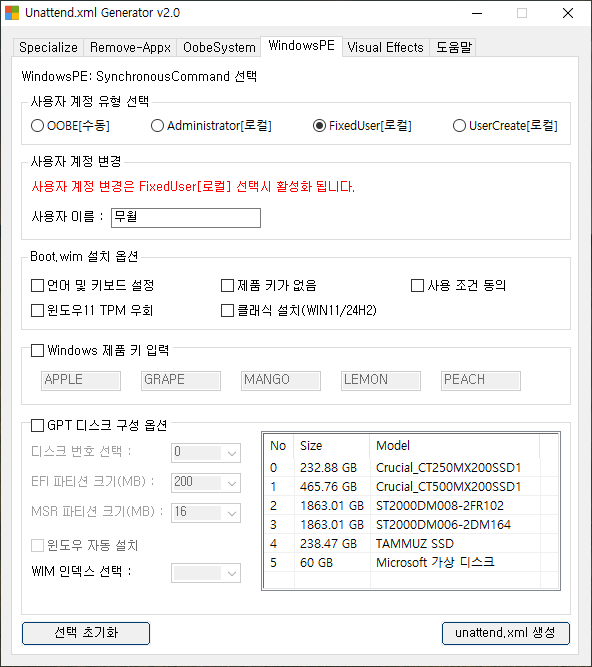
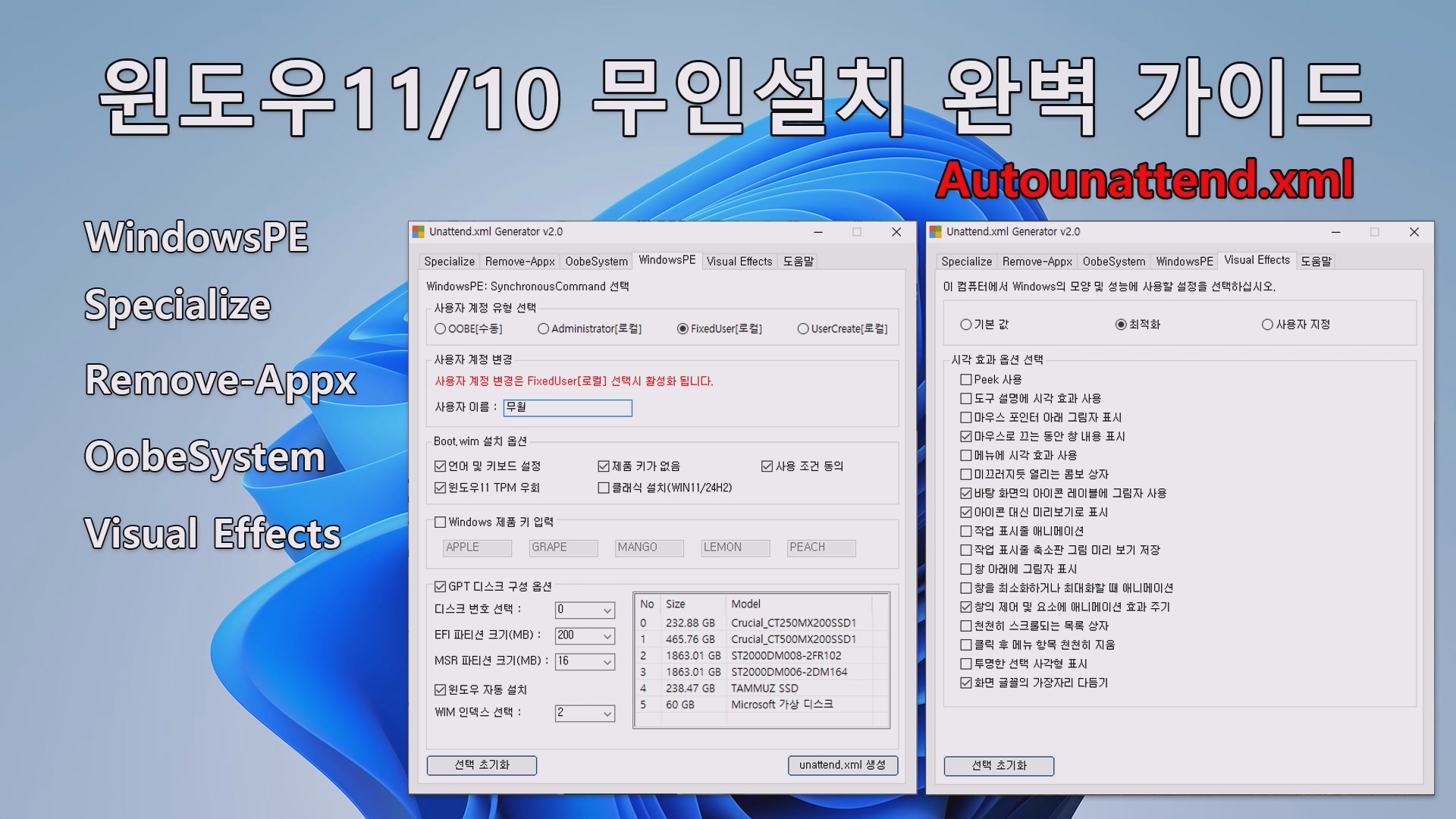
WindowsPE(Preinstallation Environment) 단계는 설치 시작 전,
부팅 이미지(boot.wim) 로드와 디스크 파티션 구성 등을 수행하는 구간입니다.
주요 기능
- 언어 및 키보드 설정
- 설치 과정의 표시 언어, 키보드 레이아웃, 로캘 지정
- 제품 키 설정 및 EULA 동의
- 자동 설치 시 라이선스 확인 과정 생략
- TPM/보안 부팅 우회 설정 (Windows 11)
- TPM, 보안 부팅 제한을 무시하고 설치 진행
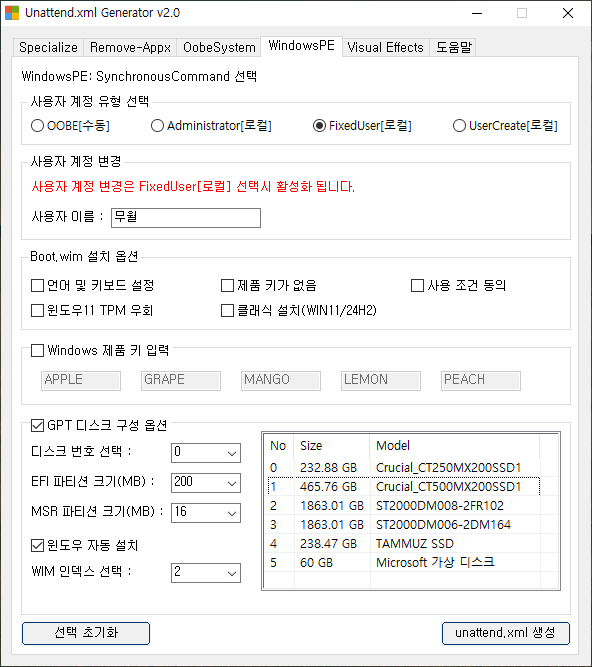
- GPT 디스크 구성
- 디스크 번호, EFI/MSR 파티션 크기 지정
- 완전 자동화된 파티션 생성 기능 포함
- WIM 인덱스 선택 및 자동 설치 옵션
기술 설명
이 탭은 <settings pass="windowsPE"> 구간을 구성하며,
Microsoft-Windows-Setup과 Microsoft-Windows-International-Core-WinPE 컴포넌트를 제어합니다.
특히 GPT 파티션 구성 명령은 다음과 같이 XML로 기록됩니다:
<settings pass="windowsPE">
<component name="Microsoft-Windows-International-Core-WinPE" processorArchitecture="amd64" publicKeyToken="31bf3856ad364e35" language="neutral" versionScope="nonSxS" xmlns:wcm="http://schemas.microsoft.com/WMIConfig/2002/State" xmlns:xsi="http://www.w3.org/2001/XMLSchema-instance">
<!-- 언어 및 키보드 레이아웃 설정 -->
<SetupUILanguage>
<UILanguage>ko-KR</UILanguage>
</SetupUILanguage>
<UILanguage>ko-KR</UILanguage>
<LayeredDriver>5</LayeredDriver>
<UILanguageFallback>en-US</UILanguageFallback>
<InputLocale>ko-KR</InputLocale>
<SystemLocale>ko-KR</SystemLocale>
</component>
<component name="Microsoft-Windows-Setup" processorArchitecture="amd64" publicKeyToken="31bf3856ad364e35" language="neutral" versionScope="nonSxS" xmlns:wcm="http://schemas.microsoft.com/WMIConfig/2002/State" xmlns:xsi="http://www.w3.org/2001/XMLSchema-instance">
<RunSynchronous>
<RunSynchronousCommand wcm:action="add">
<Order>1</Order>
<Path>cmd /q/c reg add HKLM\SYSTEM\Setup\LabConfig /v BypassTPMCheck /t REG_DWORD /d 1 /f>nul&reg add HKLM\SYSTEM\Setup\LabConfig /v BypassCPUCheck /t REG_DWORD /d 1 /f>nul&reg add HKLM\SYSTEM\Setup\LabConfig /v BypassSecureBootCheck /t REG_DWORD /d 1 /f>nul</Path>
<Description>TPM / CPU / SecureBoot 우회</Description>
</RunSynchronousCommand>
<RunSynchronousCommand wcm:action="add">
<Order>2</Order>
<Path>cmd /q/c reg add HKLM\SYSTEM\Setup\LabConfig /v BypassRAMCheck /t REG_DWORD /d 1 /f>nul&reg add HKLM\SYSTEM\Setup\LabConfig /v BypassStorageCheck /t REG_DWORD /d 1 /f>nul&reg add HKLM\SYSTEM\Setup\LabConfig /v BypassDiskCheck /t REG_DWORD /d 1 /f>nul</Path>
<Description>RAM / Storage / Disk 우회</Description>
</RunSynchronousCommand>
</RunSynchronous>
<!-- 사용자 설정을 지정합니다. -->
<UserData>
<ProductKey>
<!-- 빈칸은 제품 키 없이 통과함 -->
<Key></Key>
</ProductKey>
<!-- Microsoft 소프트웨어 사용 조건에 자동으로 동의할지 여부를 지정합니다. -->
<AcceptEula>true</AcceptEula>
</UserData>
</component>
</settings>
<settings pass="windowsPE">
<component name="Microsoft-Windows-International-Core-WinPE" processorArchitecture="amd64" publicKeyToken="31bf3856ad364e35" language="neutral" versionScope="nonSxS" xmlns:wcm="http://schemas.microsoft.com/WMIConfig/2002/State" xmlns:xsi="http://www.w3.org/2001/XMLSchema-instance">
<!-- 언어 및 키보드 레이아웃 설정 -->
<SetupUILanguage>
<UILanguage>ko-KR</UILanguage>
</SetupUILanguage>
<UILanguage>ko-KR</UILanguage>
<LayeredDriver>5</LayeredDriver>
<UILanguageFallback>en-US</UILanguageFallback>
<InputLocale>ko-KR</InputLocale>
<SystemLocale>ko-KR</SystemLocale>
</component>
<component name="Microsoft-Windows-Setup" processorArchitecture="amd64" publicKeyToken="31bf3856ad364e35" language="neutral" versionScope="nonSxS" xmlns:wcm="http://schemas.microsoft.com/WMIConfig/2002/State" xmlns:xsi="http://www.w3.org/2001/XMLSchema-instance">
<RunSynchronous>
<RunSynchronousCommand wcm:action="add">
<Order>1</Order>
<Path>cmd /q/c reg add HKLM\SYSTEM\Setup\LabConfig /v BypassTPMCheck /t REG_DWORD /d 1 /f>nul&reg add HKLM\SYSTEM\Setup\LabConfig /v BypassCPUCheck /t REG_DWORD /d 1 /f>nul&reg add HKLM\SYSTEM\Setup\LabConfig /v BypassSecureBootCheck /t REG_DWORD /d 1 /f>nul</Path>
<Description>TPM / CPU / SecureBoot 우회</Description>
</RunSynchronousCommand>
<RunSynchronousCommand wcm:action="add">
<Order>2</Order>
<Path>cmd /q/c reg add HKLM\SYSTEM\Setup\LabConfig /v BypassRAMCheck /t REG_DWORD /d 1 /f>nul&reg add HKLM\SYSTEM\Setup\LabConfig /v BypassStorageCheck /t REG_DWORD /d 1 /f>nul&reg add HKLM\SYSTEM\Setup\LabConfig /v BypassDiskCheck /t REG_DWORD /d 1 /f>nul</Path>
<Description>RAM / Storage / Disk 우회</Description>
</RunSynchronousCommand>
<RunSynchronousCommand wcm:action="add">
<Order>3</Order>
<Path>cmd /q/c for /f "tokens=3 delims=.]" %a in ('ver') do if %a geq 9200 (reg query HKLM\SYSTEM\ControlSet001\Control /v PEFirmwareType|find /i "0x1">nul&&echo.>MBR||reg query HKLM\SYSTEM\ControlSet001\Control /v PEFirmwareType|find /i "0x2">nul&&echo.>EFI)</Path>
<Description>UEFI/MBR 확인 (Windows 8 이상)</Description>
</RunSynchronousCommand>
<RunSynchronousCommand wcm:action="add">
<Order>4</Order>
<Path>cmd /q/c for /f "tokens=3 delims=.]" %a in ('ver') do if %a lss 9200 (find /i "FirmwareType 1" %Windir%\Panther\setupact.log>nul&&echo.>MBR||find /i "FirmwareType 2" %Windir%\Panther\setupact.log>nul&&echo.>EFI)</Path>
<Description>UEFI/MBR 확인 (Windows 7 이하)</Description>
</RunSynchronousCommand>
<RunSynchronousCommand wcm:action="add">
<Order>5</Order>
<Path>cmd /q/c if exist EFI echo sel disk 0 >disk&echo clean >>disk&echo convert gpt >>disk&echo cre par efi size=200 >>disk&echo format quick fs=fat32 label=ESP >>disk</Path>
<Description>GPT 디스크 초기화</Description>
</RunSynchronousCommand>
<RunSynchronousCommand wcm:action="add">
<Order>6</Order>
<Path>cmd /q/c if exist EFI echo cre par pri >>disk&echo format quick fs=ntfs label=Windows >>disk</Path>
<Description>Windows 파티션 생성</Description>
</RunSynchronousCommand>
<RunSynchronousCommand wcm:action="add">
<Order>7</Order>
<Path>cmd /q/c if exist EFI (for /f "tokens=3 delims=.]" %a in ('ver') do if %a geq 26040 echo shrink desired=16 >>disk&echo cre par msr >>disk)</Path>
<Description>MSR 파티션 생성</Description>
</RunSynchronousCommand>
<RunSynchronousCommand wcm:action="add">
<Order>8</Order>
<Path>cmd /q/c if exist MBR echo sel disk 0 >disk&echo clean>>disk&echo convert MBR>>disk&echo cre par pri>>disk&echo format quick fs=ntfs label=Windows>>disk&echo act>>disk</Path>
<Description>MBR 디스크 구성</Description>
</RunSynchronousCommand>
<RunSynchronousCommand wcm:action="add">
<Order>9</Order>
<Path>cmd /q/c if exist disk echo CreateObject("WScript.shell").Run "cmd /c diskpart.exe /s disk",0,true >_.vbs&color 1f& mode 50,3& echo.& echo 파티션 작업 중입니다. 잠시 기다려주세요& _.vbs</Path>
<Description>디스크 구성 실행 (UEFI/MBR)</Description>
</RunSynchronousCommand>
<RunSynchronousCommand wcm:action="add">
<Order>10</Order>
<Path>cmd /q/c if not exist disk echo sel disk 0 >disk&echo clean>>disk&echo CreateObject("WScript.shell").Run "cmd /c diskpart.exe /s disk",0,true >_.vbs&color 1f& mode 50,3& echo.& echo UEFI와 MBR 구분을 못 했습니다& _.vbs</Path>
<Description>UEFI/MBR 구분 실패 시 디스크 초기화</Description>
</RunSynchronousCommand>
</RunSynchronous>
<ImageInstall>
<OSImage>
<InstallFrom>
<MetaData wcm:action="add">
<Key>/IMAGE/INDEX</Key>
<!-- 윈도우 이미지 번호 // 빈칸은 이미지 선택 가능해짐 -->
<Value>2</Value>
</MetaData>
</InstallFrom>
<!-- 충분한 공간이 있고 아직 Windows 설치가 포함되지 않은 사용 가능한 첫 번째 파티션에 Windows 운영 체제를 설치할지 여부를 지정합니다. -->
<InstallToAvailablePartition>true</InstallToAvailablePartition>
</OSImage>
</ImageInstall>
<!-- 사용자 설정을 지정합니다. -->
<UserData>
<ProductKey>
<!-- 빈칸은 제품 키 없이 통과함 -->
<Key></Key>
</ProductKey>
<!-- Microsoft 소프트웨어 사용 조건에 자동으로 동의할지 여부를 지정합니다. -->
<AcceptEula>true</AcceptEula>
</UserData>
</component>
</settings>🎨 Visual Effects 탭 – 시각 효과 및 성능 설정
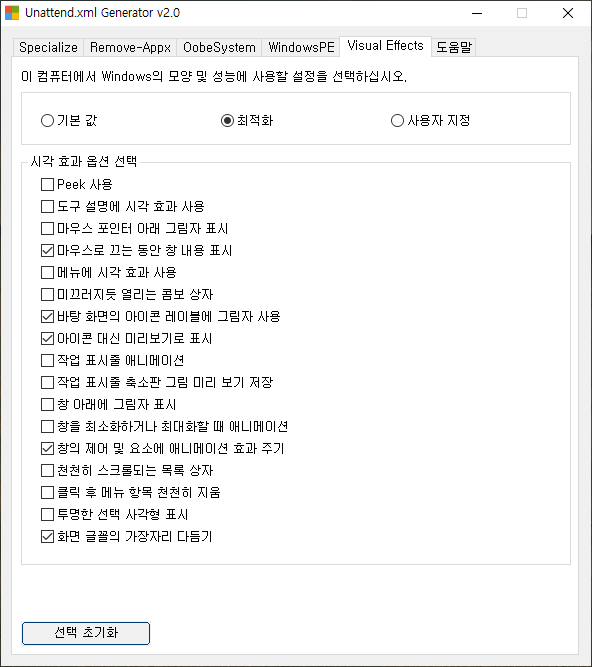
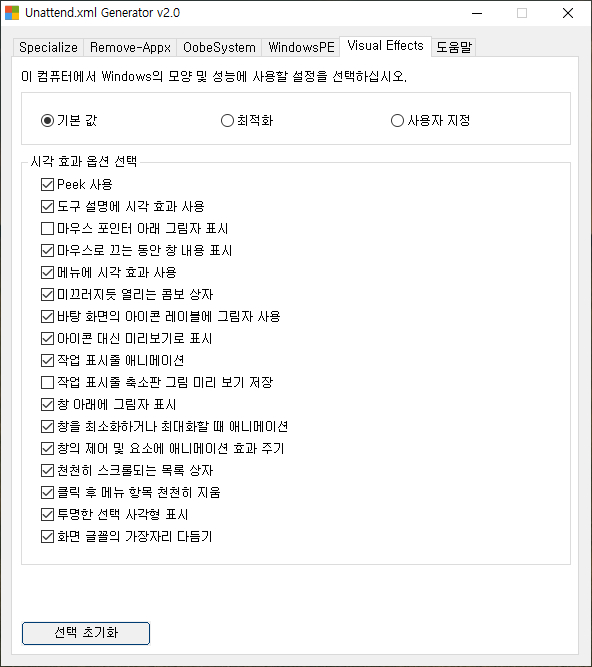
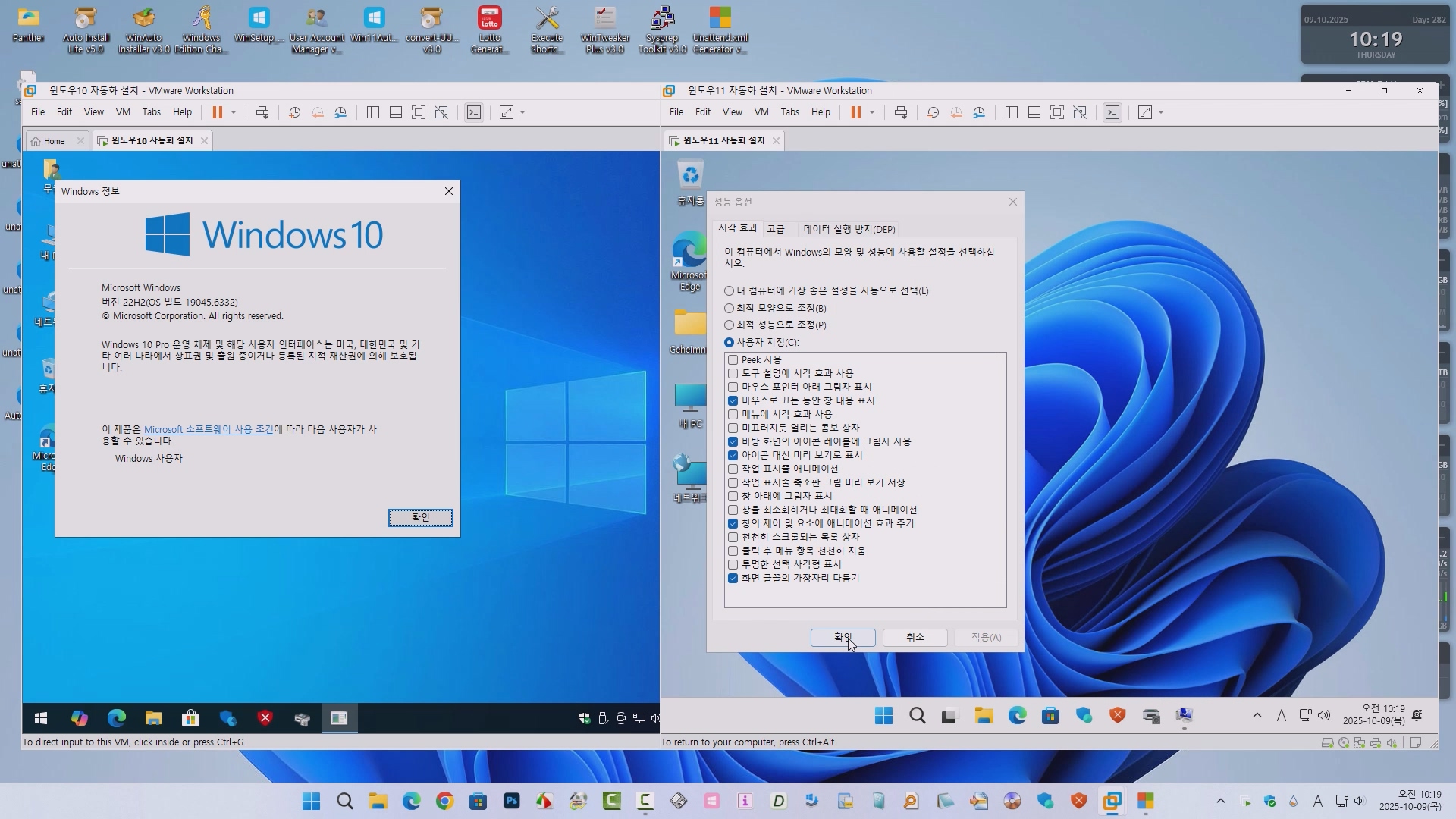
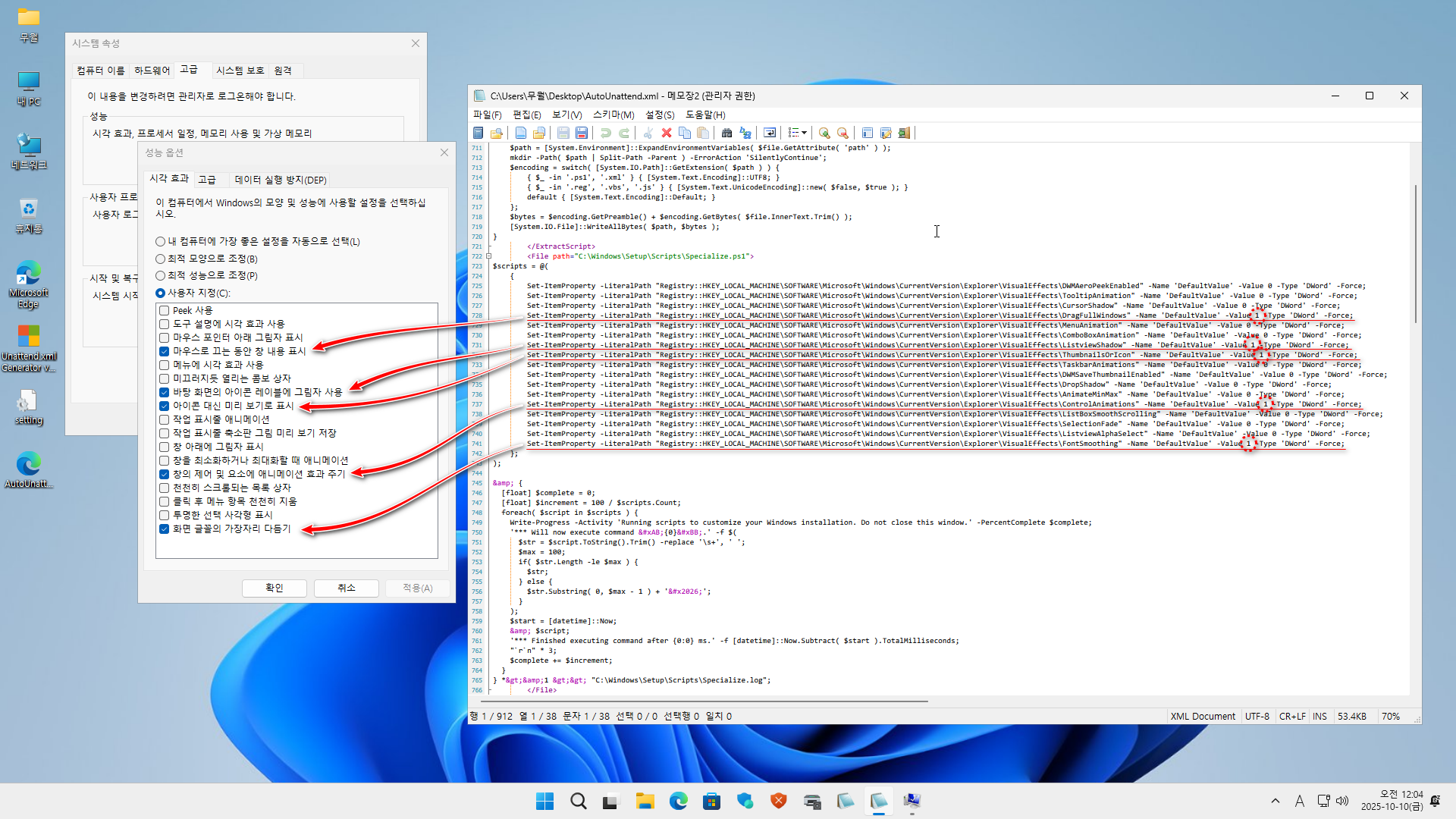
Windows의 애니메이션, 그림자, 페이드 효과 등을 제어하는 탭입니다.
시각 효과를 줄이면 CPU·GPU 부하가 줄어 성능이 개선됩니다.
주요 기능
- 프리셋 선택
- ⚙️ “기본값” : Windows 권장 설정
- 🚀 “최적화” : 성능 우선, 불필요한 효과 제거
- 🎛 “사용자 지정” : 개별 항목 선택
- 즉시 적용 기능
- “Explorer 재시작”을 통해 변경 즉시 반영
기술 설명
체크된 항목은 PowerShell 명령으로
HKCU\Software\Microsoft\Windows\CurrentVersion\Explorer\VisualEffects
레지스트리에 직접 반영됩니다:
<Extensions xmlns="https://schneegans.de/windows/unattend-generator/">
<ExtractScript>
param(
[xml] $Document
);
foreach( $file in $Document.unattend.Extensions.File ) {
$path = [System.Environment]::ExpandEnvironmentVariables( $file.GetAttribute( 'path' ) );
mkdir -Path( $path | Split-Path -Parent ) -ErrorAction 'SilentlyContinue';
$encoding = switch( [System.IO.Path]::GetExtension( $path ) ) {
{ $_ -in '.ps1', '.xml' } { [System.Text.Encoding]::UTF8; }
{ $_ -in '.reg', '.vbs', '.js' } { [System.Text.UnicodeEncoding]::new( $false, $true ); }
default { [System.Text.Encoding]::Default; }
};
$bytes = $encoding.GetPreamble() + $encoding.GetBytes( $file.InnerText.Trim() );
[System.IO.File]::WriteAllBytes( $path, $bytes );
}
</ExtractScript>
<File path="C:\Windows\Setup\Scripts\Specialize.ps1">
$scripts = @(
{
Set-ItemProperty -LiteralPath "Registry::HKEY_LOCAL_MACHINE\SOFTWARE\Microsoft\Windows\CurrentVersion\Explorer\VisualEffects\DWMAeroPeekEnabled" -Name 'DefaultValue' -Value 0 -Type 'DWord' -Force;
Set-ItemProperty -LiteralPath "Registry::HKEY_LOCAL_MACHINE\SOFTWARE\Microsoft\Windows\CurrentVersion\Explorer\VisualEffects\TooltipAnimation" -Name 'DefaultValue' -Value 0 -Type 'DWord' -Force;
Set-ItemProperty -LiteralPath "Registry::HKEY_LOCAL_MACHINE\SOFTWARE\Microsoft\Windows\CurrentVersion\Explorer\VisualEffects\CursorShadow" -Name 'DefaultValue' -Value 0 -Type 'DWord' -Force;
Set-ItemProperty -LiteralPath "Registry::HKEY_LOCAL_MACHINE\SOFTWARE\Microsoft\Windows\CurrentVersion\Explorer\VisualEffects\DragFullWindows" -Name 'DefaultValue' -Value 1 -Type 'DWord' -Force;
Set-ItemProperty -LiteralPath "Registry::HKEY_LOCAL_MACHINE\SOFTWARE\Microsoft\Windows\CurrentVersion\Explorer\VisualEffects\MenuAnimation" -Name 'DefaultValue' -Value 0 -Type 'DWord' -Force;
Set-ItemProperty -LiteralPath "Registry::HKEY_LOCAL_MACHINE\SOFTWARE\Microsoft\Windows\CurrentVersion\Explorer\VisualEffects\ComboBoxAnimation" -Name 'DefaultValue' -Value 0 -Type 'DWord' -Force;
Set-ItemProperty -LiteralPath "Registry::HKEY_LOCAL_MACHINE\SOFTWARE\Microsoft\Windows\CurrentVersion\Explorer\VisualEffects\ListviewShadow" -Name 'DefaultValue' -Value 1 -Type 'DWord' -Force;
Set-ItemProperty -LiteralPath "Registry::HKEY_LOCAL_MACHINE\SOFTWARE\Microsoft\Windows\CurrentVersion\Explorer\VisualEffects\ThumbnailsOrIcon" -Name 'DefaultValue' -Value 1 -Type 'DWord' -Force;
Set-ItemProperty -LiteralPath "Registry::HKEY_LOCAL_MACHINE\SOFTWARE\Microsoft\Windows\CurrentVersion\Explorer\VisualEffects\TaskbarAnimations" -Name 'DefaultValue' -Value 0 -Type 'DWord' -Force;
Set-ItemProperty -LiteralPath "Registry::HKEY_LOCAL_MACHINE\SOFTWARE\Microsoft\Windows\CurrentVersion\Explorer\VisualEffects\DWMSaveThumbnailEnabled" -Name 'DefaultValue' -Value 0 -Type 'DWord' -Force;
Set-ItemProperty -LiteralPath "Registry::HKEY_LOCAL_MACHINE\SOFTWARE\Microsoft\Windows\CurrentVersion\Explorer\VisualEffects\DropShadow" -Name 'DefaultValue' -Value 0 -Type 'DWord' -Force;
Set-ItemProperty -LiteralPath "Registry::HKEY_LOCAL_MACHINE\SOFTWARE\Microsoft\Windows\CurrentVersion\Explorer\VisualEffects\AnimateMinMax" -Name 'DefaultValue' -Value 0 -Type 'DWord' -Force;
Set-ItemProperty -LiteralPath "Registry::HKEY_LOCAL_MACHINE\SOFTWARE\Microsoft\Windows\CurrentVersion\Explorer\VisualEffects\ControlAnimations" -Name 'DefaultValue' -Value 1 -Type 'DWord' -Force;
Set-ItemProperty -LiteralPath "Registry::HKEY_LOCAL_MACHINE\SOFTWARE\Microsoft\Windows\CurrentVersion\Explorer\VisualEffects\ListBoxSmoothScrolling" -Name 'DefaultValue' -Value 0 -Type 'DWord' -Force;
Set-ItemProperty -LiteralPath "Registry::HKEY_LOCAL_MACHINE\SOFTWARE\Microsoft\Windows\CurrentVersion\Explorer\VisualEffects\SelectionFade" -Name 'DefaultValue' -Value 0 -Type 'DWord' -Force;
Set-ItemProperty -LiteralPath "Registry::HKEY_LOCAL_MACHINE\SOFTWARE\Microsoft\Windows\CurrentVersion\Explorer\VisualEffects\ListviewAlphaSelect" -Name 'DefaultValue' -Value 0 -Type 'DWord' -Force;
Set-ItemProperty -LiteralPath "Registry::HKEY_LOCAL_MACHINE\SOFTWARE\Microsoft\Windows\CurrentVersion\Explorer\VisualEffects\FontSmoothing" -Name 'DefaultValue' -Value 1 -Type 'DWord' -Force;
};
);
& {
[float] $complete = 0;
[float] $increment = 100 / $scripts.Count;
foreach( $script in $scripts ) {
Write-Progress -Activity 'Running scripts to customize your Windows installation. Do not close this window.' -PercentComplete $complete;
'*** Will now execute command «{0}».' -f $(
$str = $script.ToString().Trim() -replace '\s+', ' ';
$max = 100;
if( $str.Length -le $max ) {
$str;
} else {
$str.Substring( 0, $max - 1 ) + '…';
}
);
$start = [datetime]::Now;
& $script;
'*** Finished executing command after {0:0} ms.' -f [datetime]::Now.Subtract( $start ).TotalMilliseconds;
"`r`n" * 3;
$complete += $increment;
}
} *>&1 >> "C:\Windows\Setup\Scripts\Specialize.log";
</File>
<File path="C:\Windows\Setup\Scripts\UserOnce.ps1">
$scripts = @(
{
Set-ItemProperty -LiteralPath "Registry::HKEY_CURRENT_USER\Software\Microsoft\Windows\CurrentVersion\Explorer\VisualEffects" -Name 'VisualFXSetting' -Type 'DWord' -Value 3 -Force;
};
{
Get-Process -Name 'explorer' -ErrorAction 'SilentlyContinue' | Where-Object -FilterScript {
$_.SessionId -eq ( Get-Process -Id $PID ).SessionId;
} | Stop-Process -Force;
Start-Sleep -Seconds 3
Start-Process "C:\Windows\System32\SystemPropertiesPerformance.exe"
};
);
& {
[float] $complete = 0;
[float] $increment = 100 / $scripts.Count;
foreach( $script in $scripts ) {
Write-Progress -Activity 'Running scripts to configure this user account. Do not close this window.' -PercentComplete $complete;
'*** Will now execute command «{0}».' -f $(
$str = $script.ToString().Trim() -replace '\s+', ' ';
$max = 100;
if( $str.Length -le $max ) {
$str;
} else {
$str.Substring( 0, $max - 1 ) + '…';
}
);
$start = [datetime]::Now;
& $script;
'*** Finished executing command after {0:0} ms.' -f [datetime]::Now.Subtract( $start ).TotalMilliseconds;
"`r`n" * 3;
$complete += $increment;
}
} *>&1 >> "$env:TEMP\UserOnce.log";
</File>
</Extensions>📘 도움말 탭 – 프로그램 사용 안내
각 탭의 역할과 설정 항목 설명을 한눈에 볼 수 있는 구간입니다.
GUI 상단의 “도움말” 탭에서 스크롤 가능한 텍스트로 표시됩니다.
주요 내용
- WindowsPE, Specialize, OobeSystem 등 각 단계별 설명
- 설정 시 주의사항 및 권장값 안내
- Tistory 블로그 링크(Tistory 블로그 방문) 포함
🧠 마무리
이 프로그램은 단순한 XML 편집기를 넘어,
Windows 자동 설치 전 과정을 시각적으로 설계할 수 있는 통합 구성 도구입니다.
각 탭은 Windows 설치 단계(windowsPE, specialize, oobeSystem)와 1:1로 대응하며,
체크박스와 입력란만으로도 완전한 Unattend.xml 파일이 자동 생성됩니다.
💡 초보자에게는 “클릭으로 완성하는 자동 설치 설정기”,
고급 사용자에게는 “자동화된 배포 환경 제작기”로 활용할 수 있습니다.




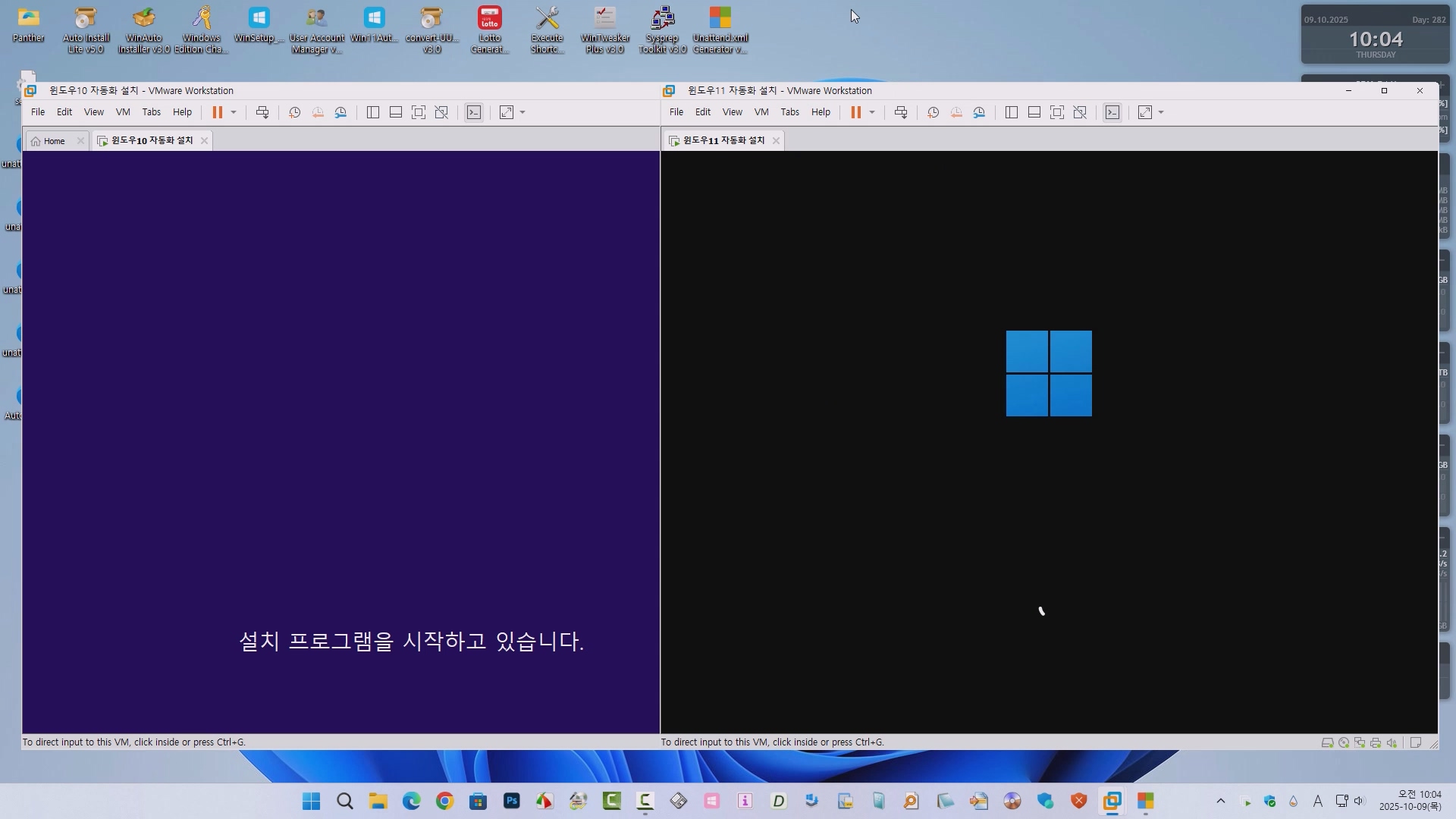
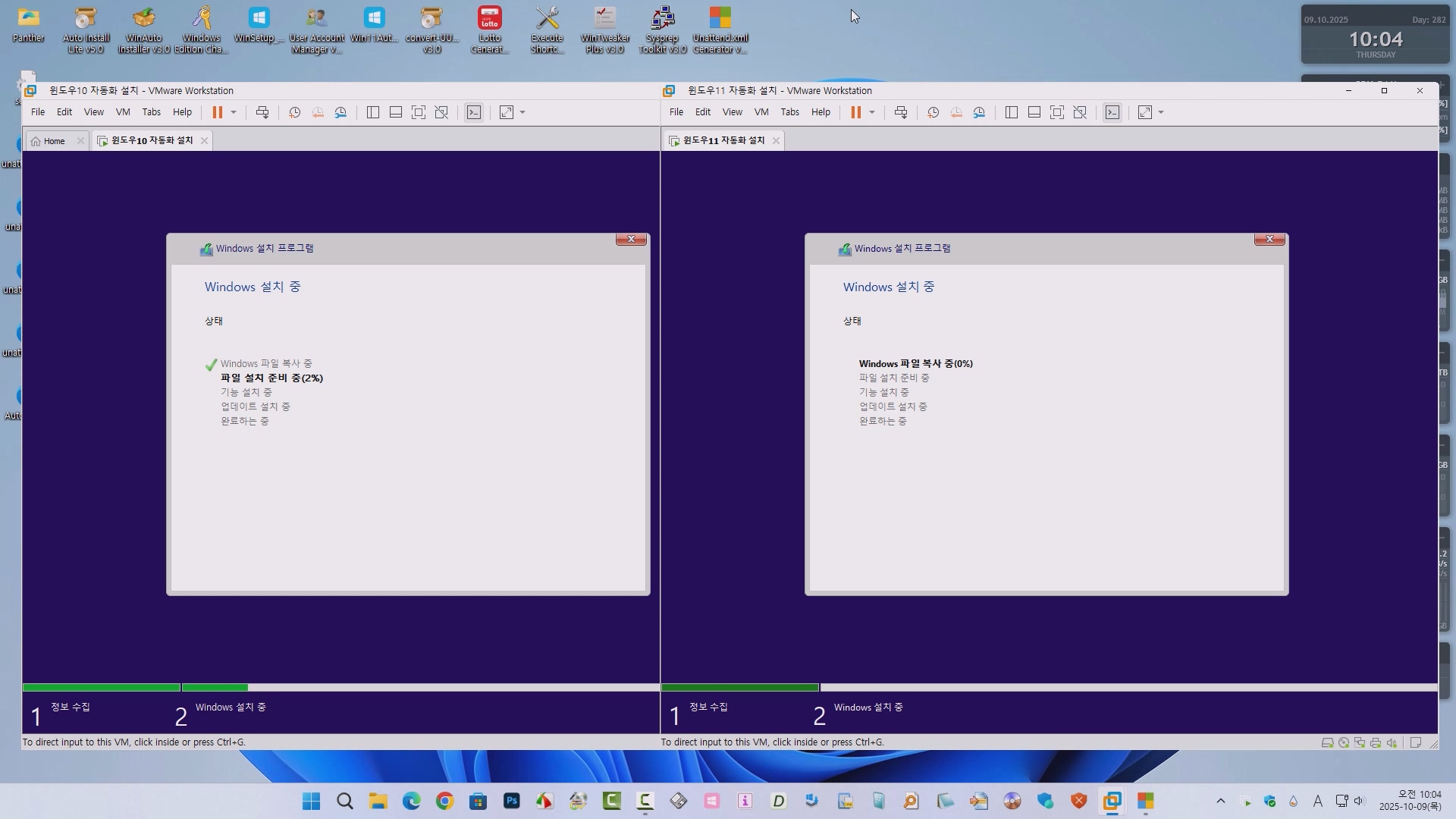

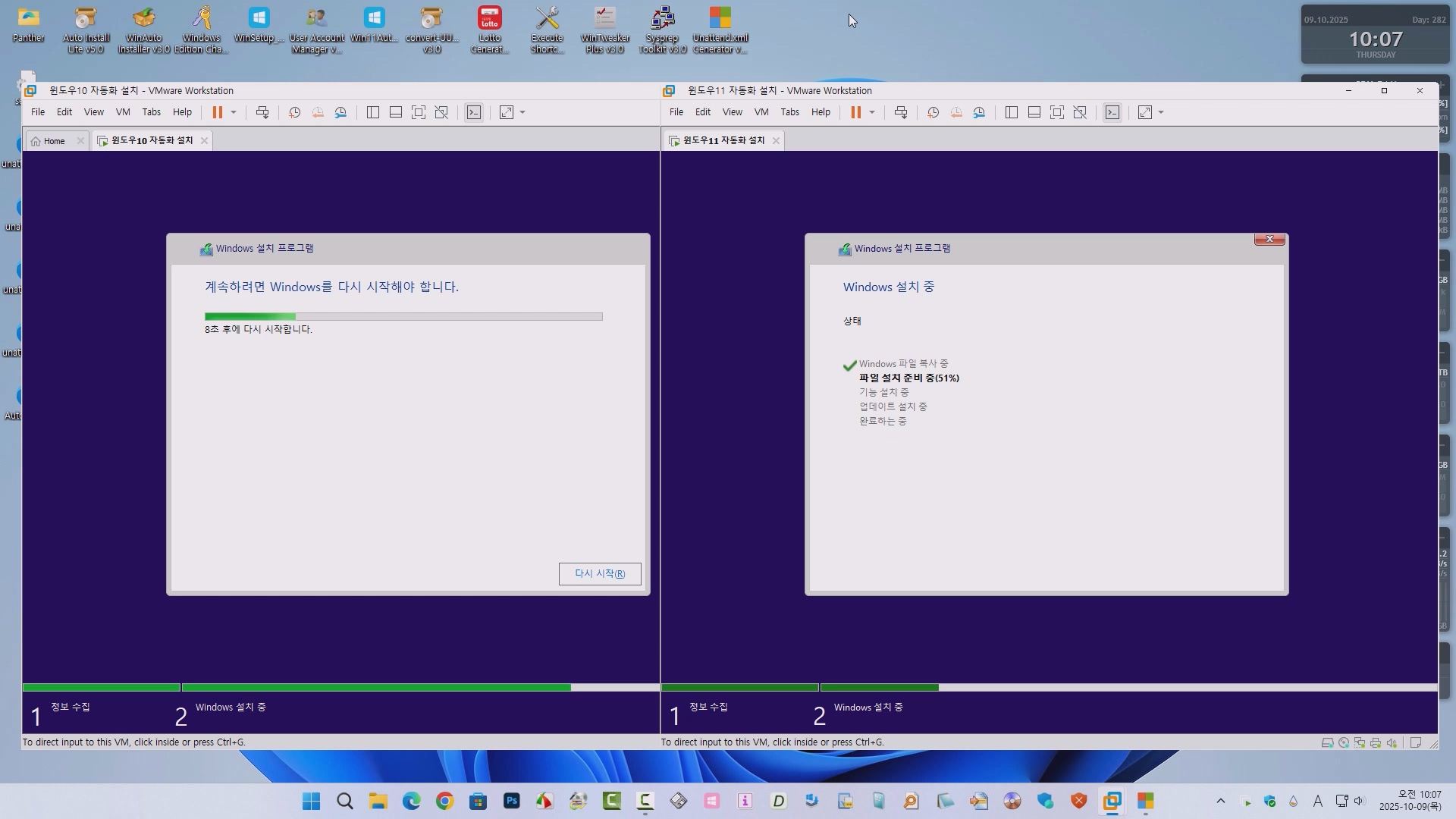

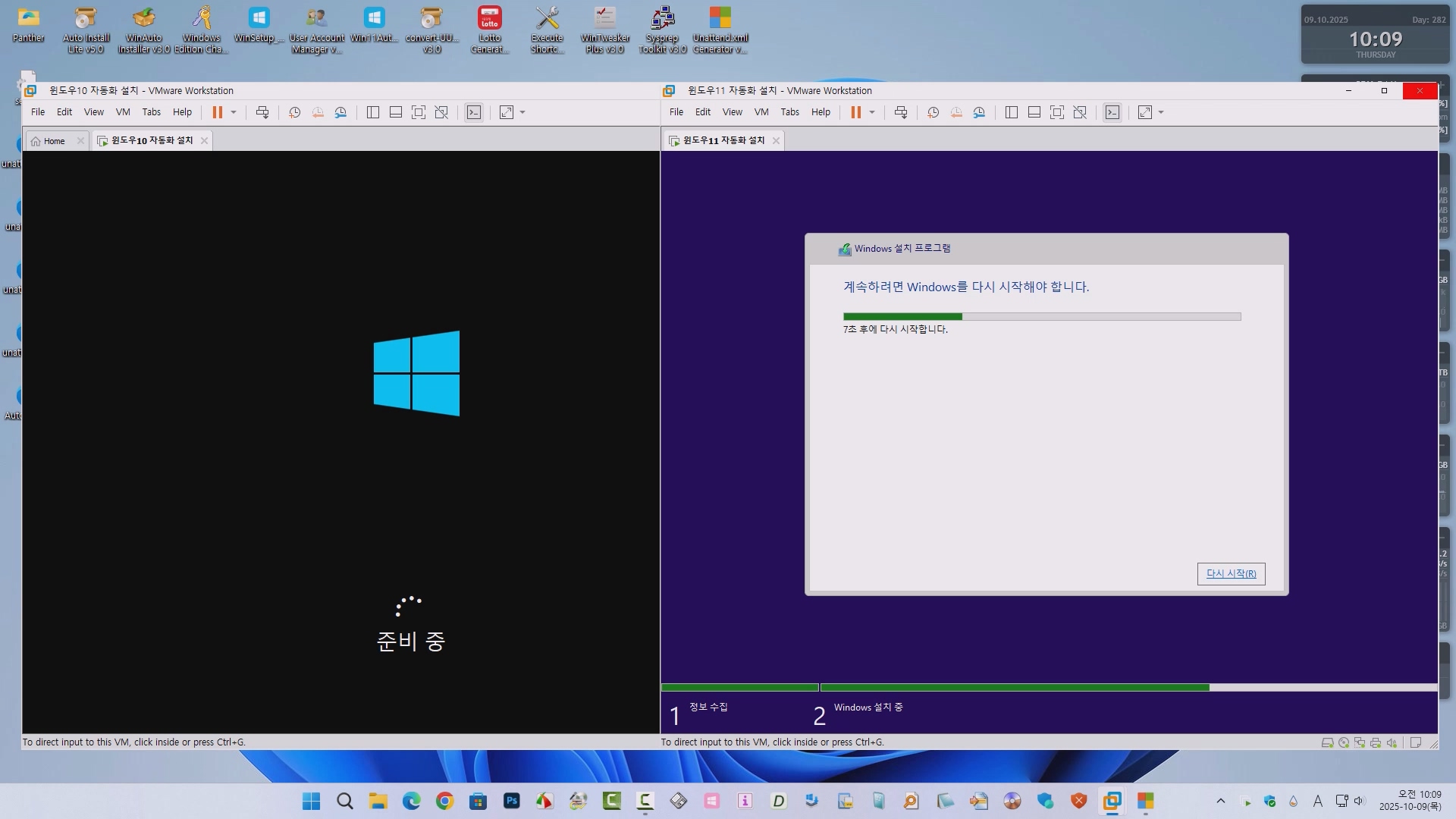
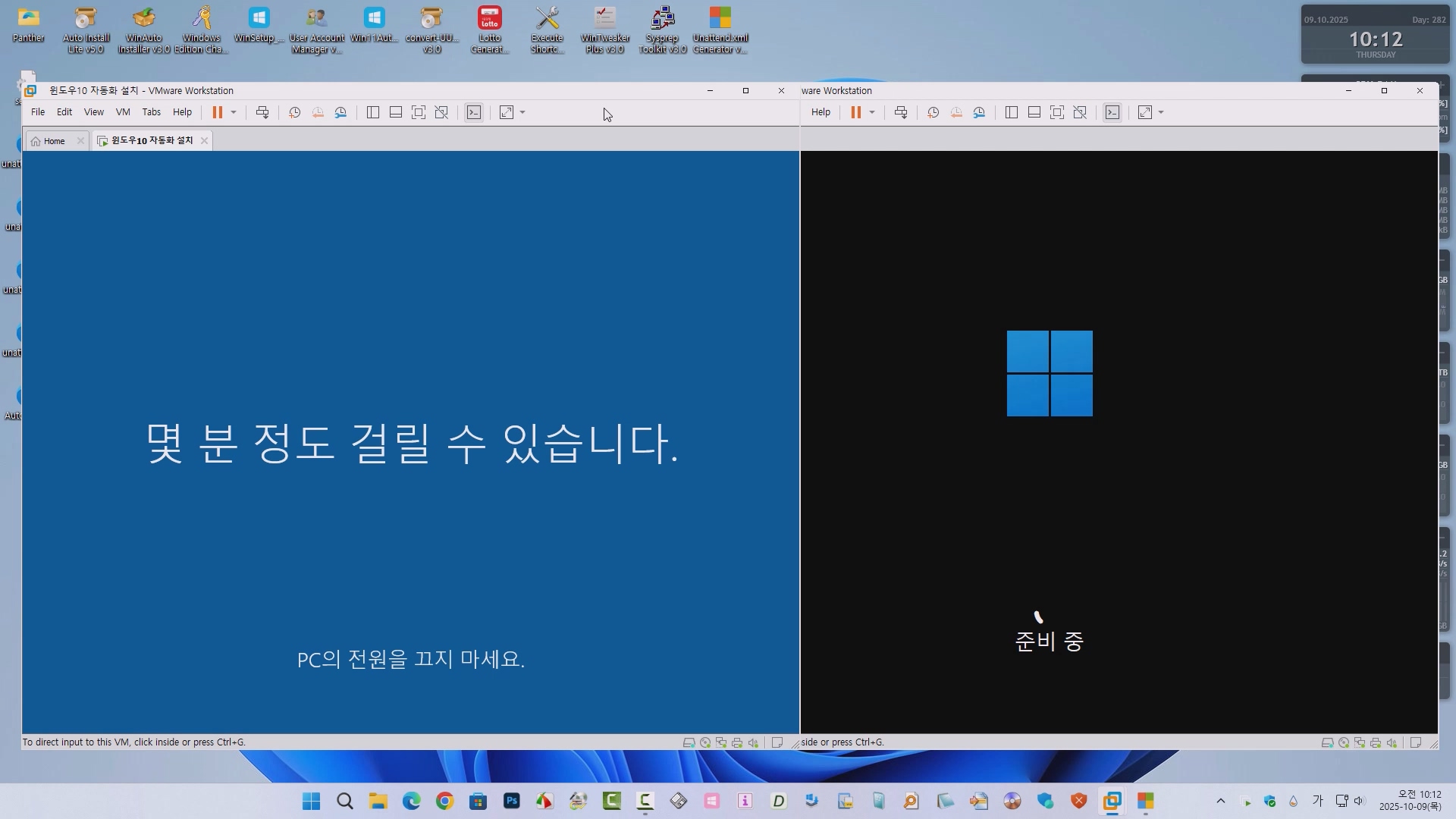
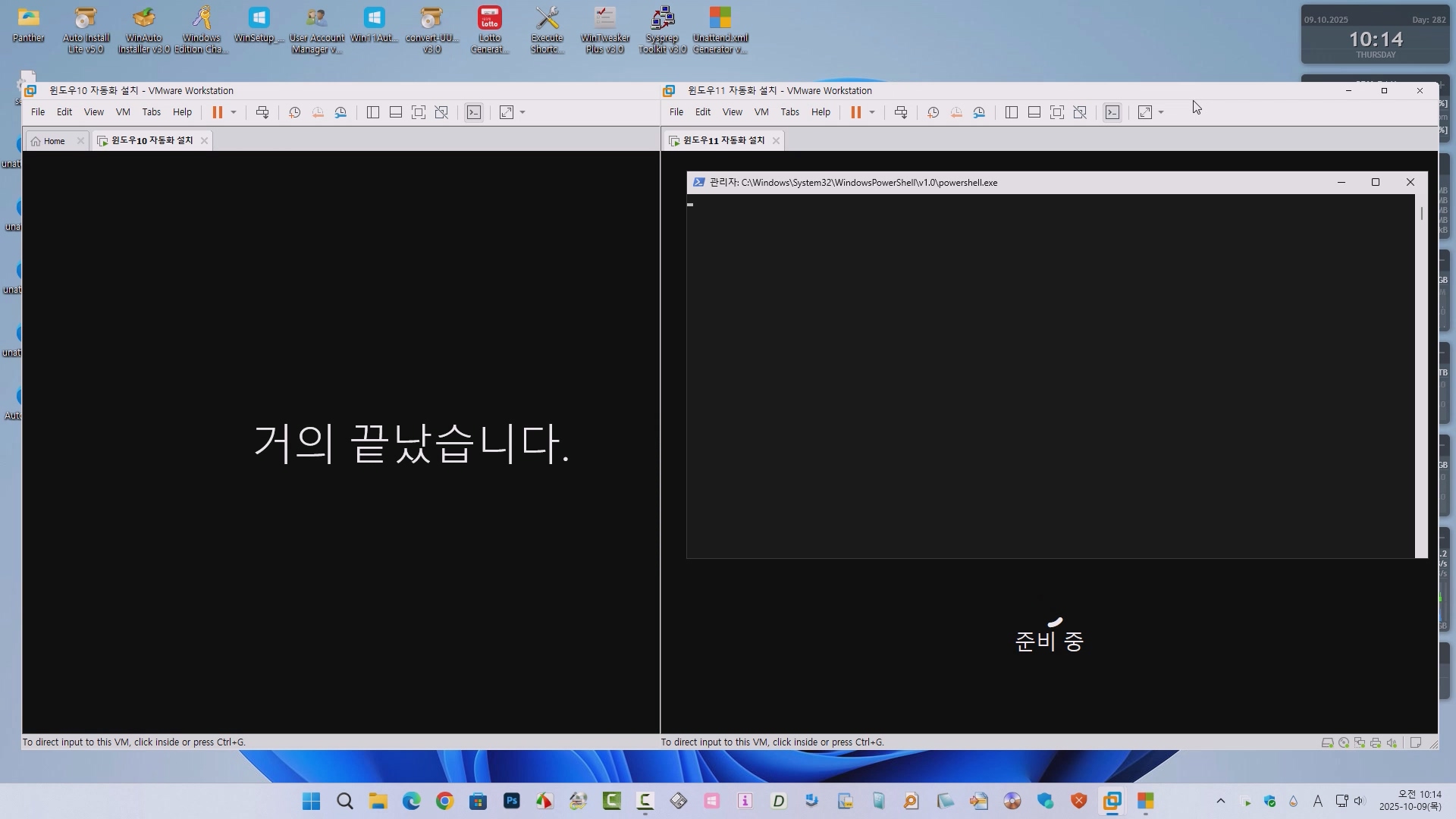
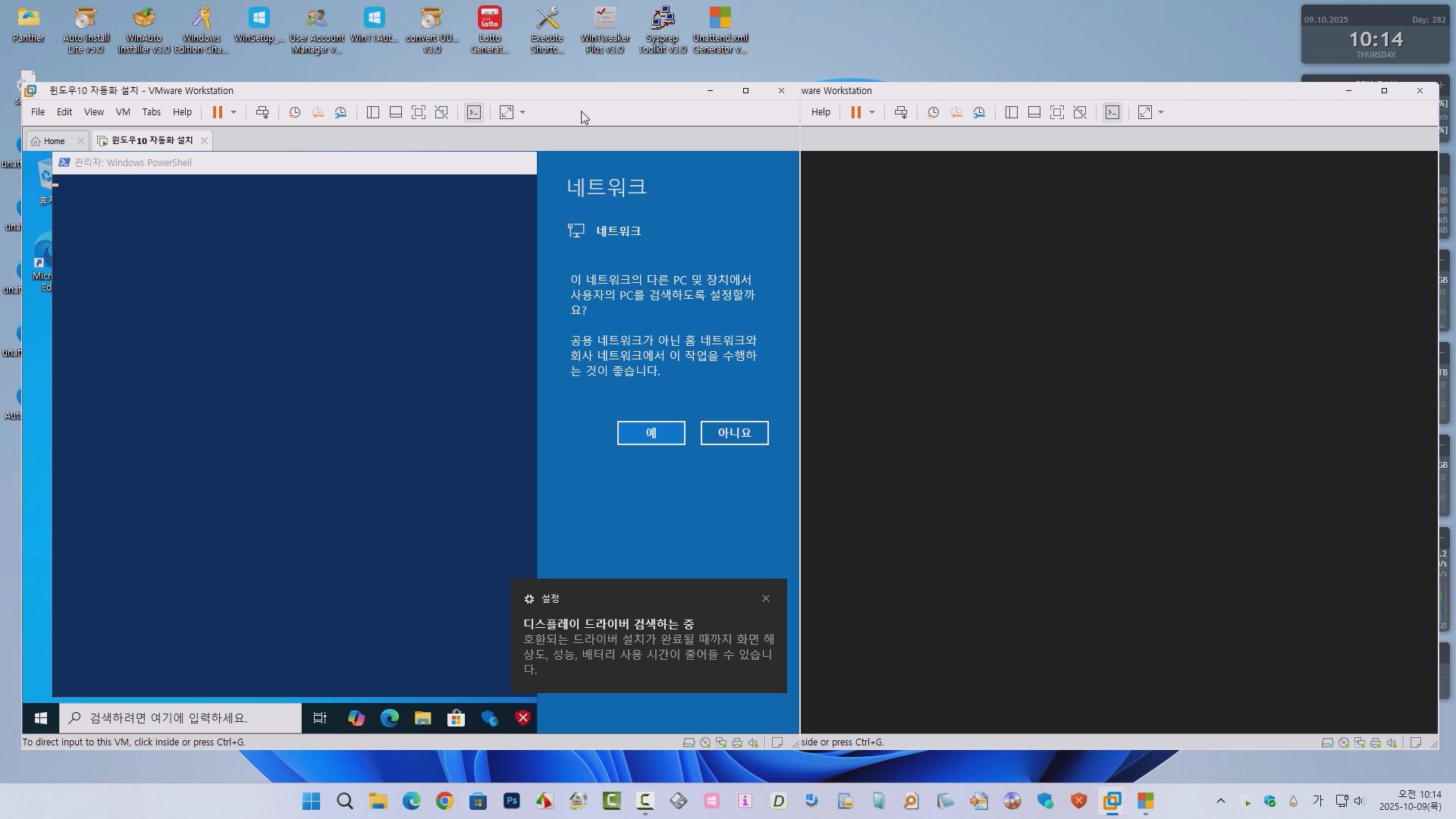


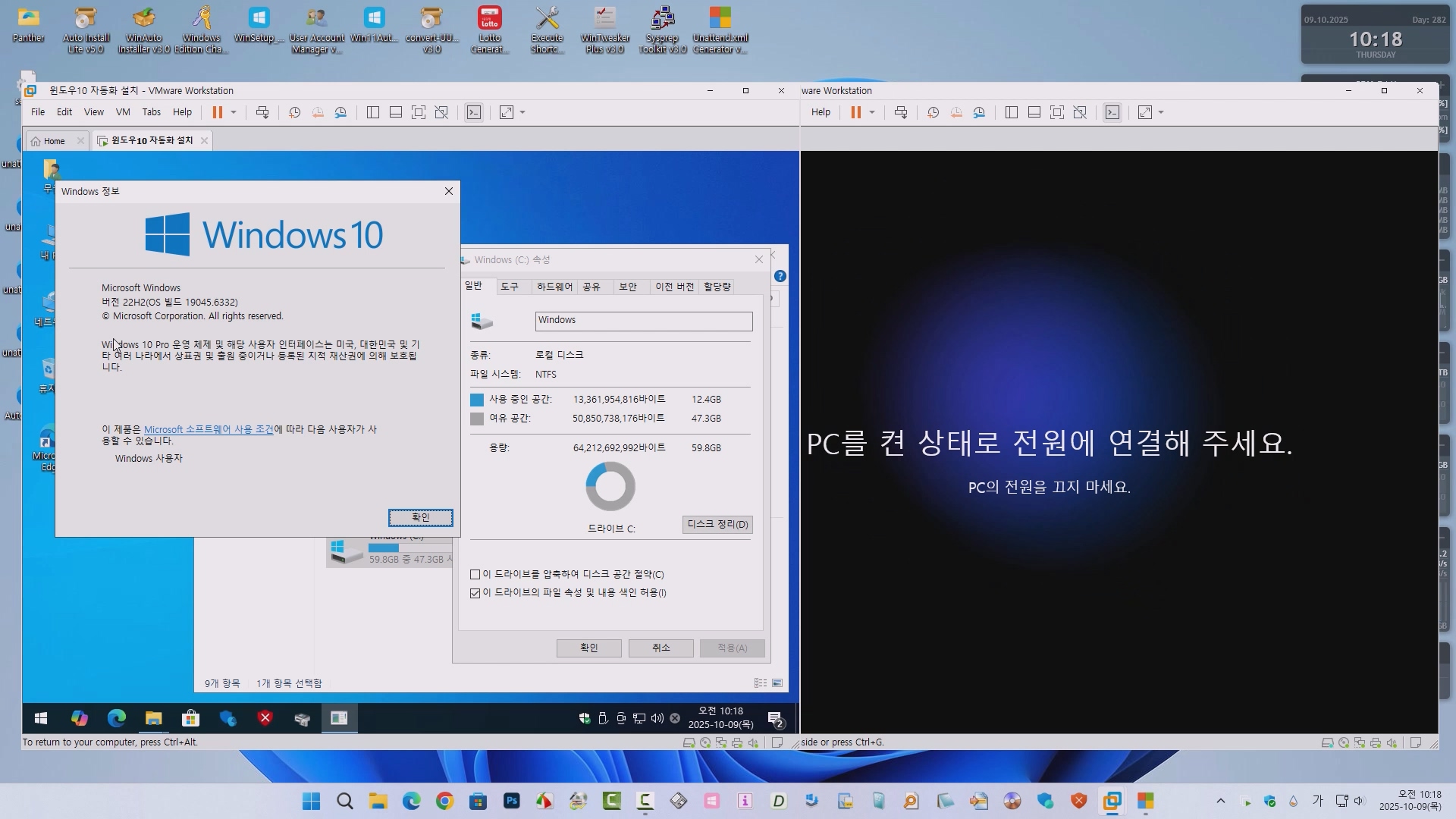
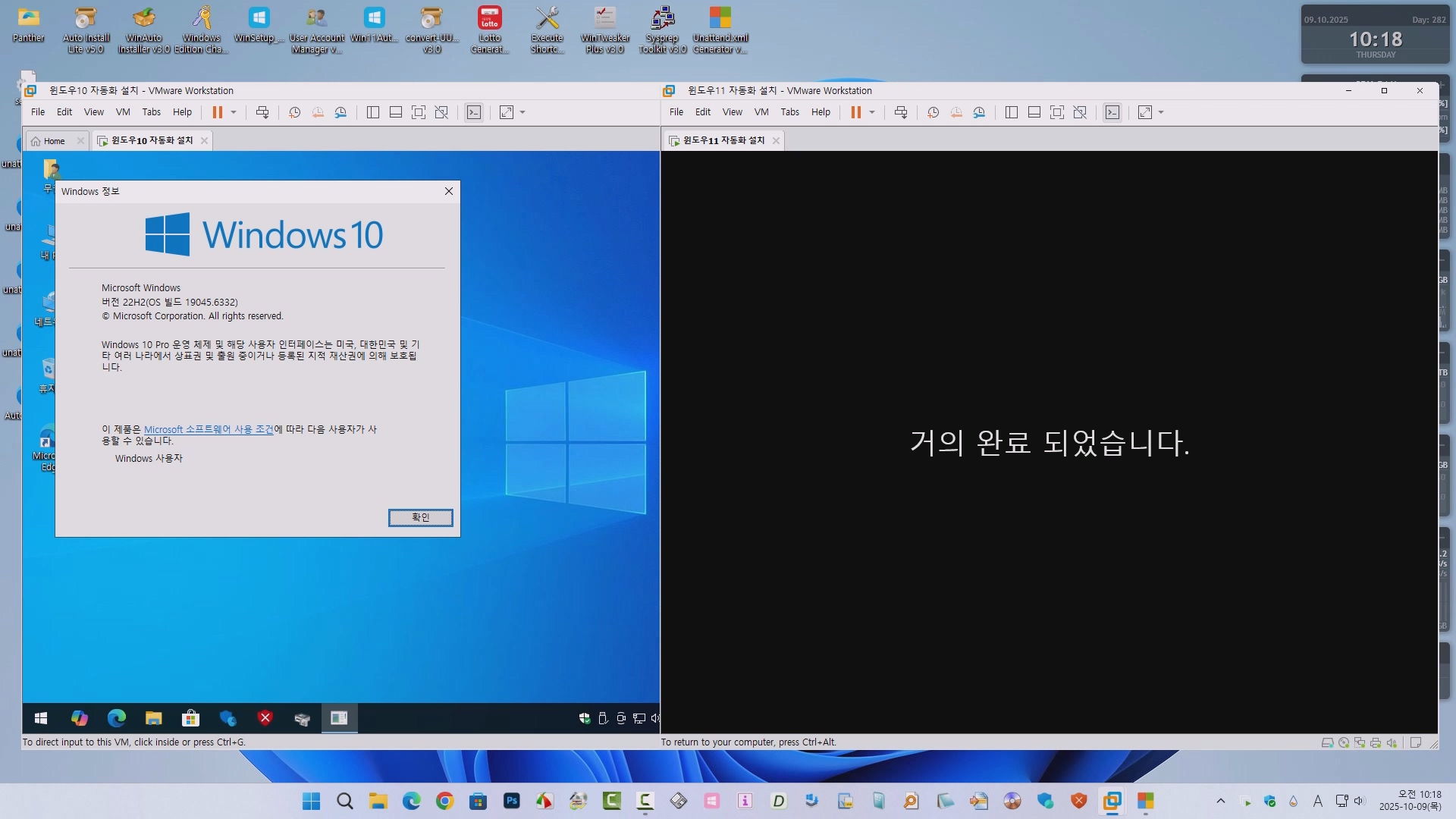


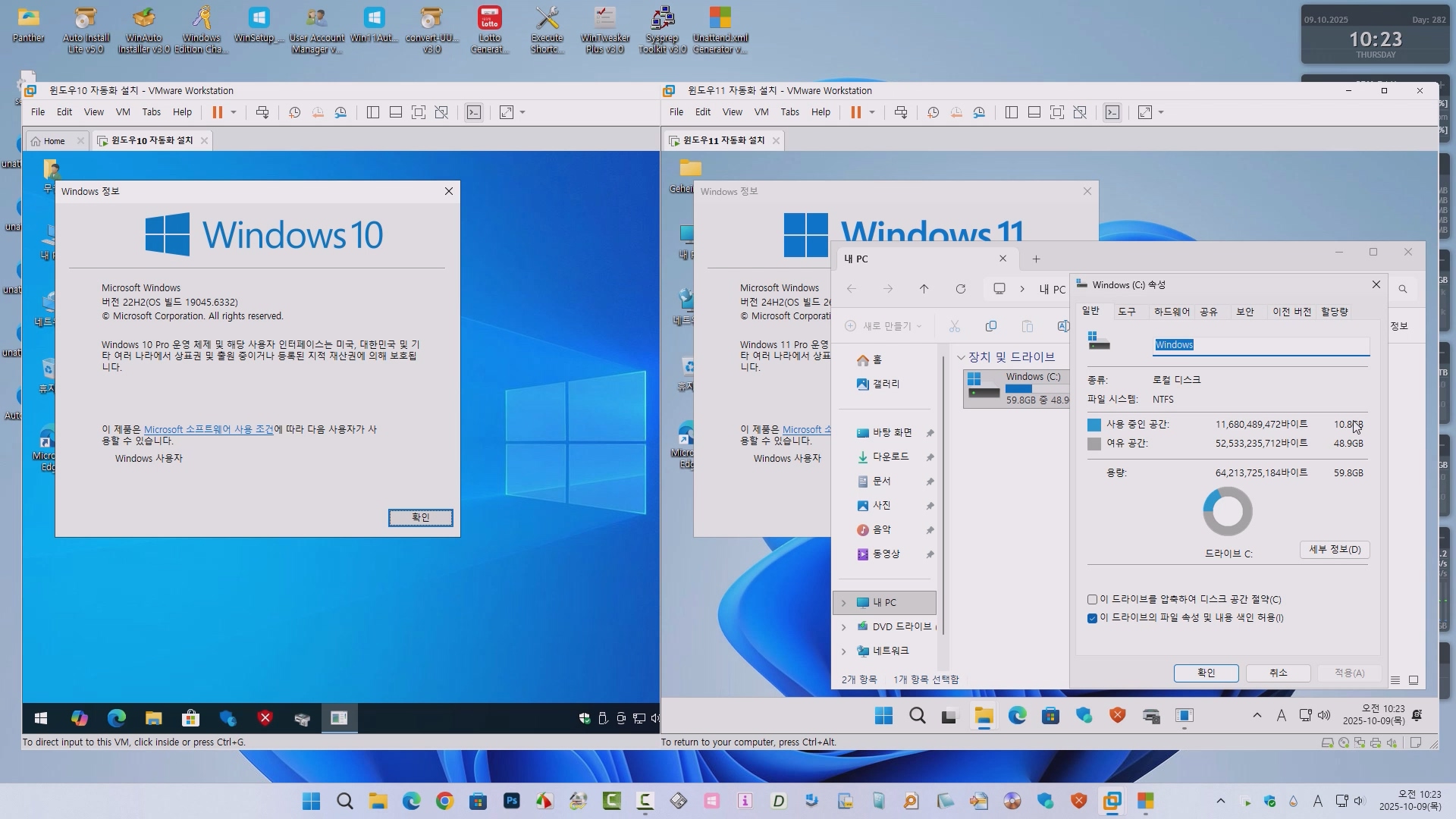
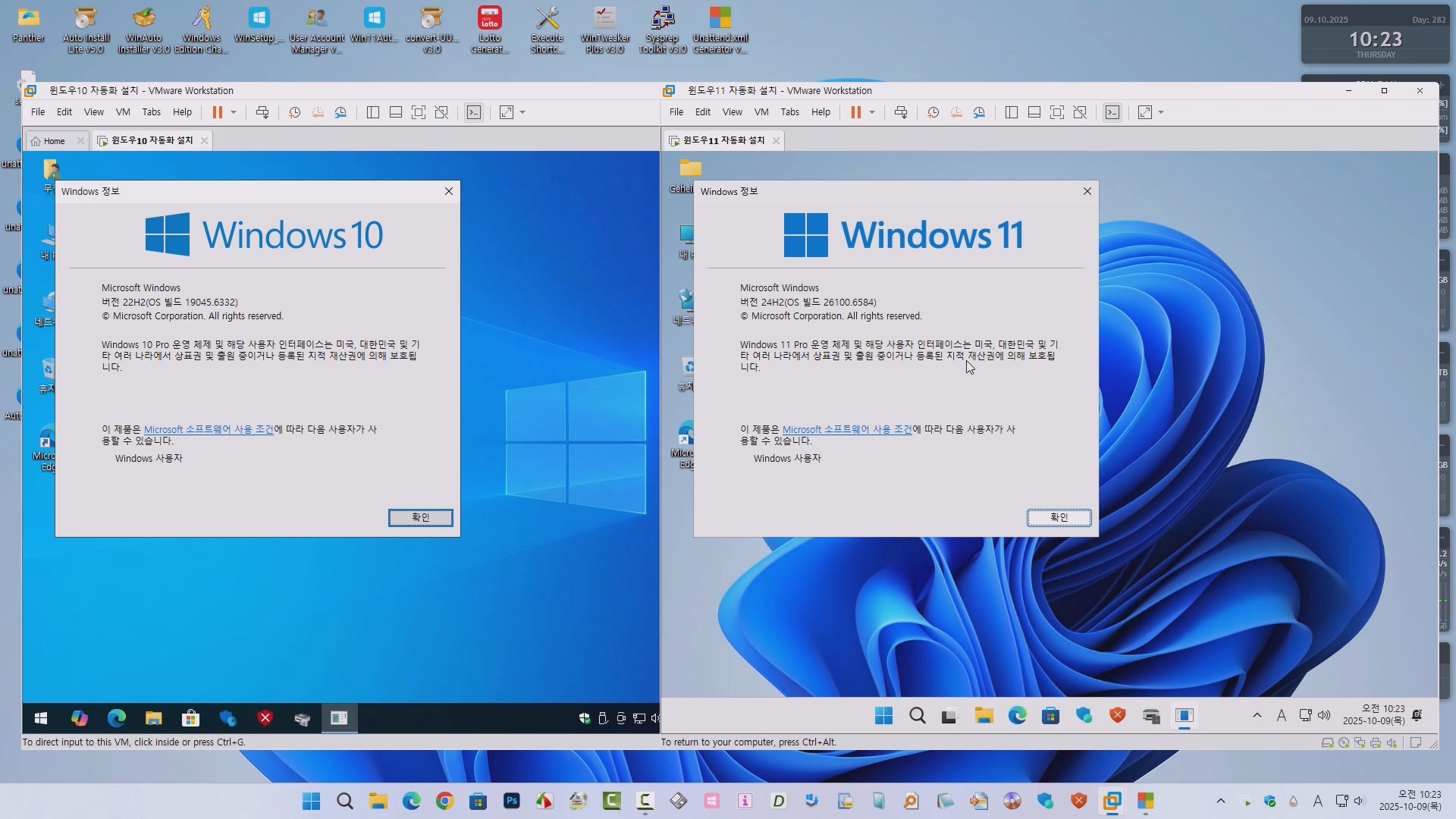


■ 윈도우11 자동화(Autounattend.xml) 설치 움짤(GIF)

■ 윈도우10 자동화(Autounattend.xml) 설치 움짤(GIF)

■ 동영상 제목 클릭 후 전체화면(1080P)시청 가능합니다.
정보가 도움이 되었다면 아래 링크로 커피를 후원 해주세요. ^^

'자작 프로그램 > Unattend.xml 생성기' 카테고리의 다른 글
| AutoUnattend Extractor v1.0 — XML에 포함된 스크립트 자동 추출 도구 초안 (0) | 2025.10.12 |
|---|---|
| Unattend.xml Generator v3.0 - 우클릭 메뉴 추가 (0) | 2025.10.12 |
| Unattend.xml Generator v2.0 - 탭 분류 및 기능 세분화 (21) | 2025.10.03 |
| Unattend.xml Generator v1.0 - 무인설치 응답파일 생성기 초안 (2) | 2025.09.29 |
| 무인설치 옵션 선택 응답파일(Unattend.xml) 생성기 개선 (74) | 2024.05.30 |